GTA Loading Screen AI Generator – Free Prompts & How-To
This GTA loading screen AI generator turns a selfie, pet photo or original character into a GTA VI loading screen in one redraw. Try a wide sunset scene, a vertical portrait or a pet close-up, then download the result as a wallpaper or avatar. The prompts are free to copy. Redrawing an image uses credits.
Make a GTA VI loading screen in three steps

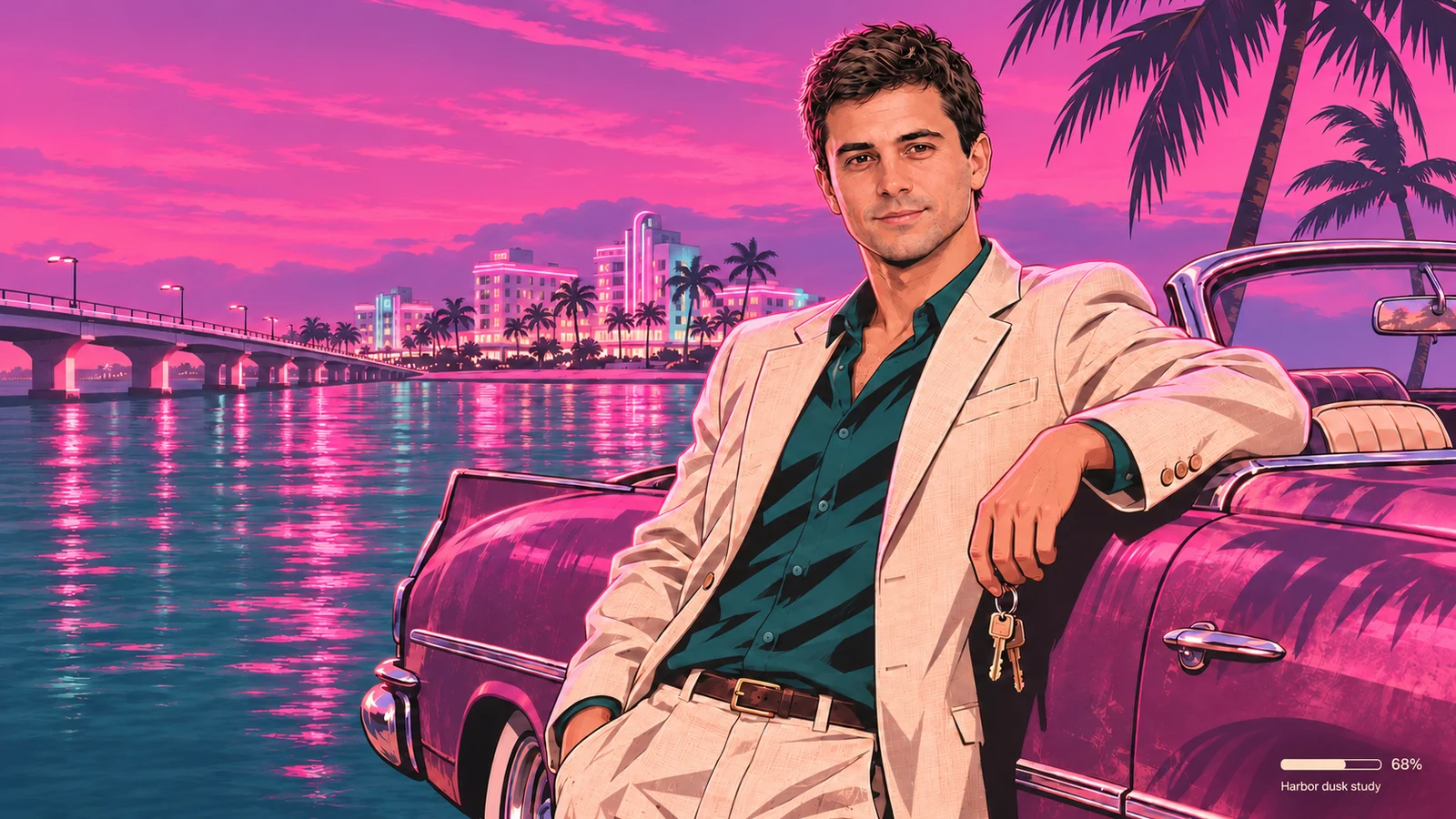
The reference shows a straight-on, close-cropped portrait in a navy shirt. The finished composition places the subject at the right beside a car, opens the background to a waterfront at sunset and introduces an ivory jacket. That extra scene is what makes the wide image read like a loading screen. If the original outfit matters, specify it directly, for example, “Keep my navy crew-neck shirt and leave the neckline visible.”
- Open the editor and upload a photo. Use the button below to open Image to Image with the wide-screen prompt already filled in. Sign in, select Upload an image, and pick a PNG, JPEG or WebP. The preset selects Reimagine to give the model room for a different pose and layout.
- Choose your aspect ratio and framing. After the upload, open Parameters beside the model selector and choose 16:9 under Aspect ratio for the desktop example. The aspect ratios shown depend on your model. Edit the prompt to change the setting, palette or position of the subject. For a more active pose, ask the subject to lean against the car with keys in one hand. Adjust one detail at a time so you can see what changed between redraws.
- Check credits, redraw and download. Review the credit cost next to Redraw image, then select it. When the image is ready, check the framing and use Download image to save your result. Open the file at the size you plan to share and check that the face reads clearly and important details have room around them.
Three free GTA loading screen prompts
Each prompt pairs an original scene with a small fictional loading detail. The examples show how to leave room for it in the lower-right corner.
16:9 widescreen loading screen
Start with a clear photo of one person. A waist-up reference shows the model how the shoulders and arms sit. Try swapping the boulevard for a roadside diner, keeping the subject on the right so the wide layout still has room to breathe.
Use my uploaded photo as the subject reference for a 16:9 GTA VI fan-made loading screen. Keep the face, hairstyle and outfit recognizable. Frame the subject from the waist up on the right, with a neon coastal boulevard, silhouetted palms and a coral-to-violet sunset behind them. Draw crisp ink contours and bold blocks of color. Bottom right: a small progress bar with a percentage and one line of tiny fictional small print. No real game logo, wordmark or on-screen interface.
3:4 selfie portrait
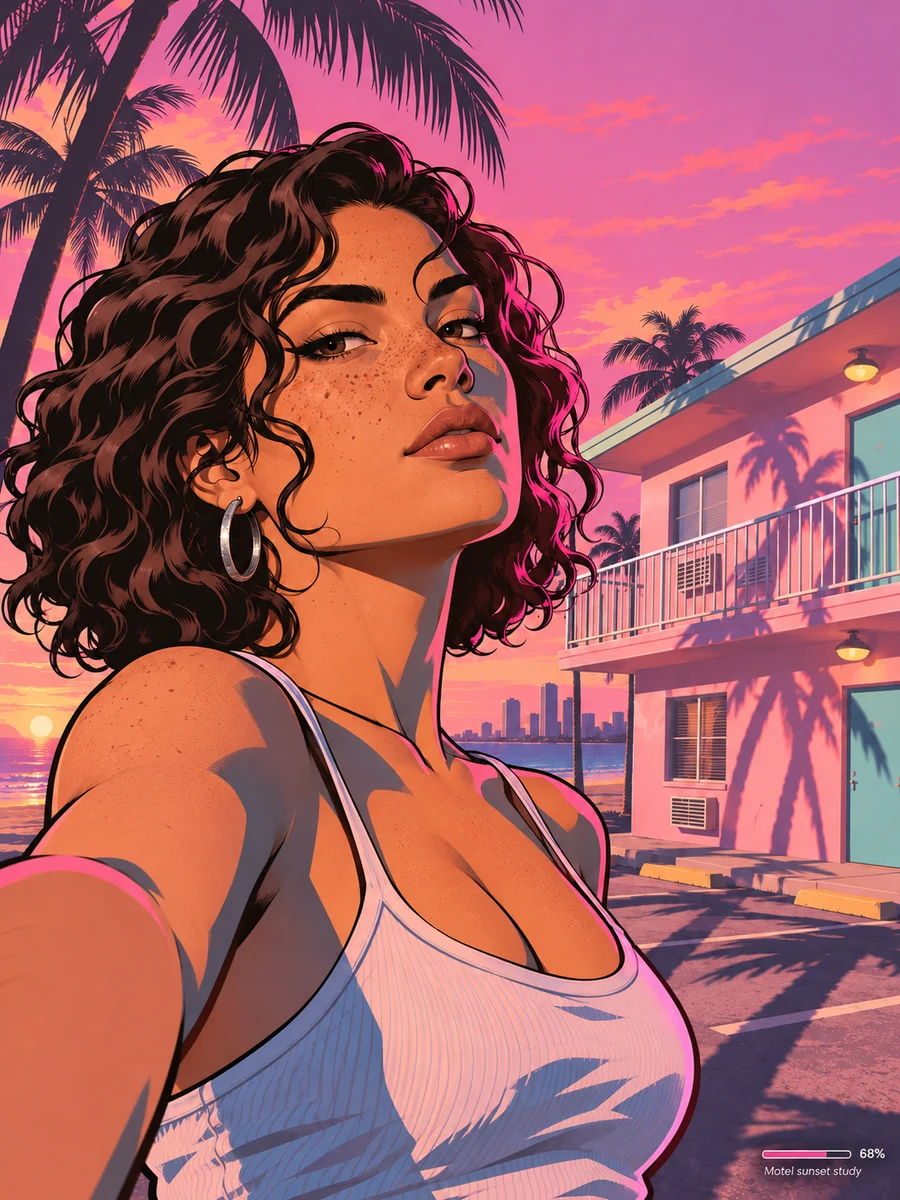
Choose an eye-level selfie with the entire outline of your hair visible. The example keeps the dark curls, freckles and silver hoop distinct against the pink light of a beachfront motel. To change the mood, trade the hot pink rim light for a warm sunset from one side and keep the original expression.
Redraw my uploaded selfie as a 3:4 GTA VI loading screen portrait. Keep the face, hair and expression recognizable. Crop from the chest up and place me left of center with a pastel beachfront motel and palm shadows behind me. Use confident outlines, hot pink rim light and two-tone shadows. Bottom right: a small progress bar with a percentage and one line of tiny fictional small print. No real game logo, wordmark or on-screen interface.
Pet loading screen
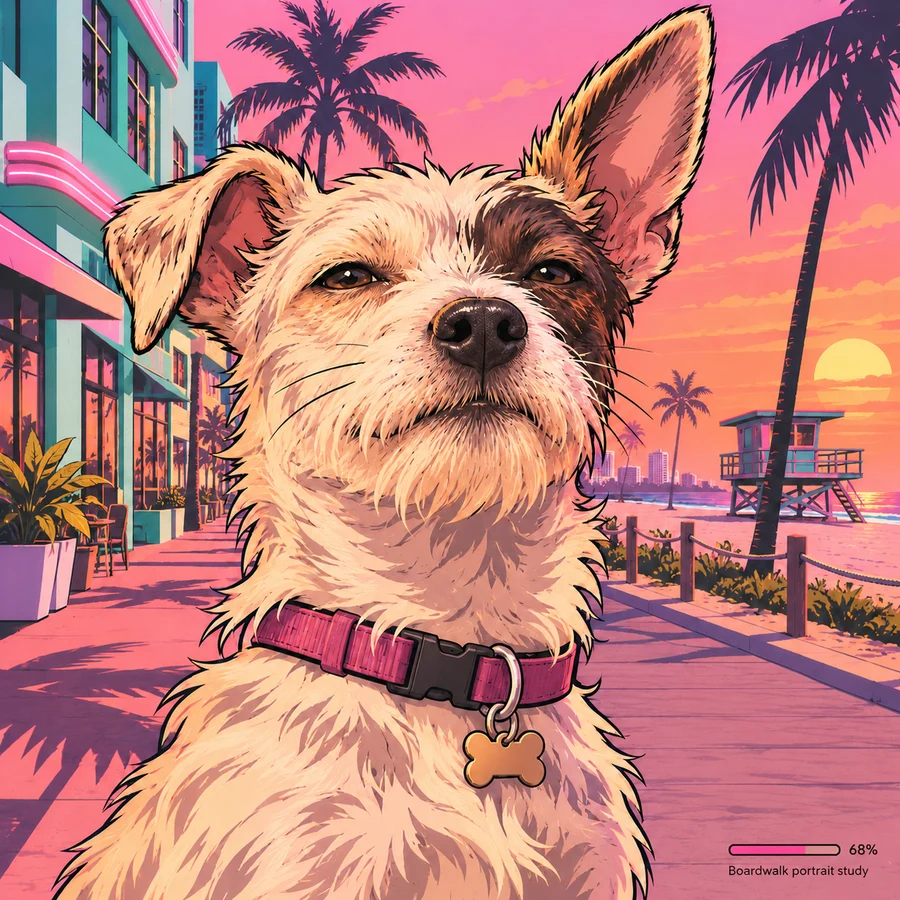
Use a photo at your pet’s eye level, with both ears and distinctive fur markings in the frame. The terrier example has a dark eye patch and mismatched ear shapes. Name details like those before changing the boardwalk or lighting.
Turn my uploaded pet photo into a GTA VI fan-made loading screen illustration. Keep the ear shape, fur markings and expression recognizable. Show my pet in close-up by a beach boardwalk with teal shopfronts, peach sunset light and bold graphic shadows. Give the face the center of the composition for an easy square crop. Bottom right: a small progress bar with a percentage and one line of tiny fictional small print. No real game logo, wordmark or on-screen interface.
GTA loading screen templates and variants
Start with the format you plan to share. A desktop scene needs room for its setting, a storyboard needs distinct shots, and an avatar needs a readable face.
A widescreen GTA loading screen template for 16:9
Start with a sharp waist-up photo and place the subject on the right third. Give the other side a reason to stay open. A marina railing, bridge or line of shop awnings can lead the eye across the frame toward the portrait. For a GTA 6 coastal mood, try peach light over dark teal water. Keep the busiest details behind or away from the face so the silhouette reads at desktop size.
Reserve a small patch of quiet pavement or water near the lower-right corner for the fictional label. If a hand, car mirror or other detail occupies that spot, ask to shift the subject inward before making the label smaller.
Redraw my reference as a 16:9 fan-made loading screen with a waist-up portrait beside a convertible on the right, a dusky waterfront stretching across the left, bold ink contours, and a small fictional progress bar with a percentage and one line of invented fine print in the bottom-right corner, without any real game logo, wordmark or official interface.
Build a 3×3 storyboard with the GTA loading screen maker
Think in nine shots with a beginning, middle and ending. Start wide to establish the location, move in for an expression or prop, then end on a wider image that shows where the action led. A mix of headshots, hand details and scenery reads more like a sequence than nine similar portraits. Keep the character’s jacket, hairstyle and key prop consistent, and repeat one accent color across the panels.
Give the grid equal gutters and save the loading detail for the full composition. A model may vary the panel count or rearrange the shots. If you need a precise nine-frame layout, make the images separately and arrange them in a grid.
Redraw my reference as a fan-made 3×3 storyboard with one consistent character and outfit across nine panels showing an arrival, a glance, keys, a car door, a dashboard view, a street crossing, a rearview reflection, a waterfront turn and a distant skyline, using even gutters, a shared sunset palette and one small fictional progress bar with a percentage and invented fine print at the bottom right of the whole grid, without any real game logo, wordmark or official interface.
Turn a selfie into a vertical 9:16 phone wallpaper
The 3:4 selfie above works as a portrait. A GTA 6 lock screen needs more space above and below the face. Choose 9:16 before the redraw and position the eyes around the upper middle, with room for the phone clock. Let a motel walkway, palms or a long shadow fill the bottom so the taller frame feels composed.
Preview the finished image on your phone. The clock can cover hair in a tight crop, and bottom shortcuts can cover the progress detail. If they do, move the artwork’s label slightly inward and keep its surrounding area quiet.
Redraw my selfie as a fan-made 9:16 lock-screen illustration with a recognizable face in the upper middle, a quiet sky above for the phone clock, a neon motel walkway extending below, and a small fictional progress bar with a percentage and one line of invented fine print near the bottom right inside the crop, without any real game logo, wordmark or official interface.
Make a square pet portrait that also works as an avatar
Pick an eye-level photo with both ears visible and enough light to show the fur pattern. Give the model two details to hold onto, such as a folded right ear and a patch around the left eye. A boardwalk rail or beach shop gives the scene a sense of place while leaving the face as the focal point.
Keep the eyes, nose and ear tips inside an imaginary circle. The square artwork can show its fictional loading detail in the corner, and the circular avatar crop can leave that detail outside the frame. Check the smallest version you’ll use. If the markings blend together, ask for simpler shadows and stronger separation around the muzzle.
Redraw my pet photo as a fan-made square beach boardwalk portrait with its eyes, ear shapes and fur markings preserved, its face and ears centered inside a circular crop, and a small fictional progress bar with a percentage and one line of invented fine print in the bottom-right corner of the square artwork, without any real game logo, wordmark or official interface.
Wallpaper and avatar sizes
- Desktop wallpaper
- 16:9 · 1920 × 1080
- Phone wallpaper
- 9:16 · 1080 × 1920
- Avatar
- 1:1 · 1024 × 1024
These are target crop sizes. The model controls the downloaded resolution. A 3:4 portrait gives you more room at the sides for shoulders and scenery. For a 9:16 lock screen, generate in that ratio and leave extra room above the head for the clock. For a square avatar, start from the 3:4 selfie and crop around the face. Preview a circle before posting to check whether the hair or ears are clipped.
Save the widescreen original before cropping versions for other screens. For a chat profile, preview the square at thumbnail size. If the eyes disappear into shadow, brighten the portrait or simplify the backdrop before exporting the crop.
To restyle another photo with your own prompt, redraw it in Image to Image. To draw a GTA loading screen from a selfie, use Photo to Anime to turn the photo into an illustrated portrait. To build a square profile picture from a written character idea, create an original anime avatar. To build a GTA loading screen from a written scene description, use the Anime Art Generator.
Animate your finished loading screen
If your completed image has an Image to Video action in your task activity, use it to carry that image into the video generator. You can also save the still and open the generator below. Sign in and use Reference to upload it, or select Choose from my images to find a recent creation.
Copy the example below into Describe the motion. A slow camera move and a few background details can bring the artwork to life while keeping the subject recognizable.
Slow camera push toward the subject. Keep the subject, expression and layout steady. Let a light breeze move the palm fronds, with a faint shimmer on the water and subtle moving reflections from the sunset.
Choose a video model and review the duration and credit quote before selecting Generate. Video generation has its own credit cost. When the clip is ready, use Download video to save the MP4.
Open the Image to Video generatorFrequently asked questions
Can I add the real game logo?
We recommend leaving the official logo out. This GTA loading screen AI generator guide is for fan-made illustrations. Use your own artwork and give it a fictional location or scene credit in the corner.
Are the GTA loading screen prompts free?
Yes. All three prompts are free to copy and edit. Running a redraw uses credits. The editor shows the cost for your selected model before you generate.
Why does the redraw look like a different person?
Start again with an eye-level photo in even light. Switch to Keep the composition and name two or three features to preserve, such as your hairline, glasses and smile. Simplify any change in pose until the likeness comes through.
How do I keep my pet’s markings in the right place?
Describe a marking relative to the pet’s own left or right side, and identify which ear stands up. A closer reference with both ears inside the frame gives the model a clearer view.
Why does the artwork look like a color filter?
Ask for visible ink contours around the jaw and shoulders, two-tone shadows and a separate illustrated background. Pick one light direction, such as warm sunset from the left, so the face and scene feel like the same illustration.
Can I make an animated loading screen?
The prompts create still illustrations. The Image to Video generator can add atmosphere and camera motion to your finished image.
What if the crop cuts off my head or shoulders?
Choose the delivery ratio in Parameters after uploading, then ask for extra room above the hair and along the sides. If the current model lacks your ratio, check another reference-image model before submitting.
Fan-made. Not affiliated with Rockstar Games or Take-Two Interactive.