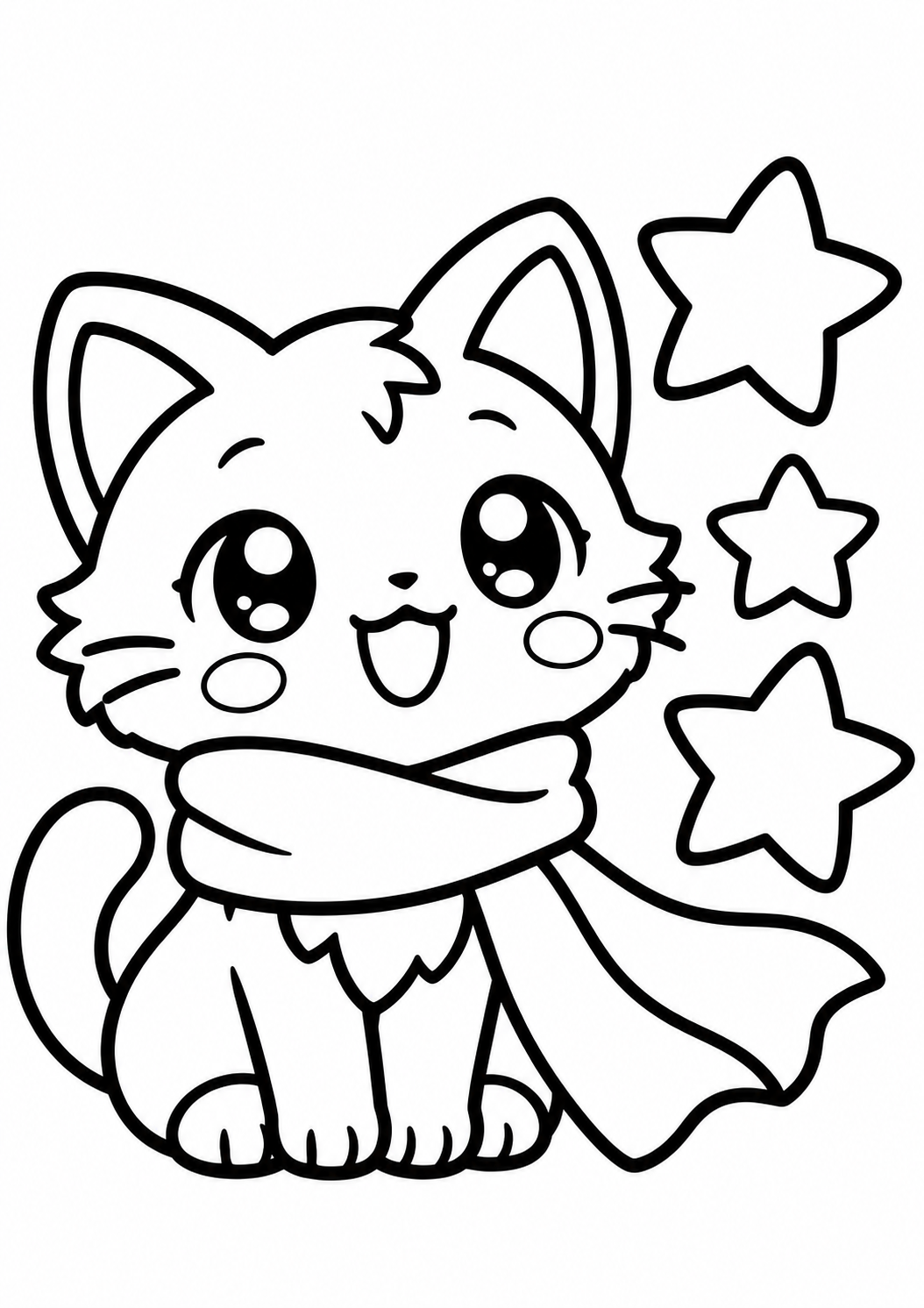
Anime coloring pages
12 original line drawings, ready for your pencils, markers or digital palette. Choose a difficulty and download a free PNG or A4 PDF. No sign-in needed to download.
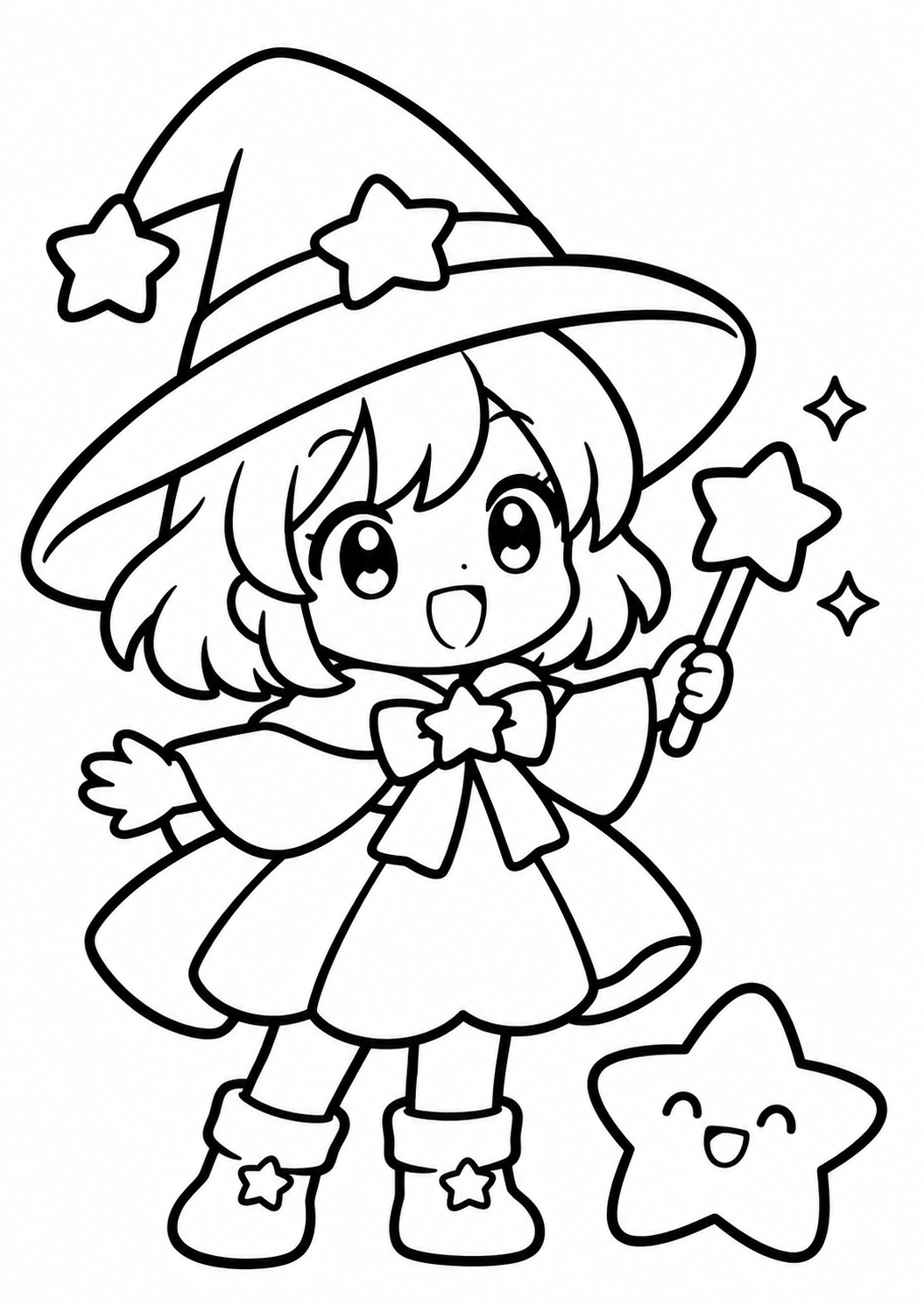
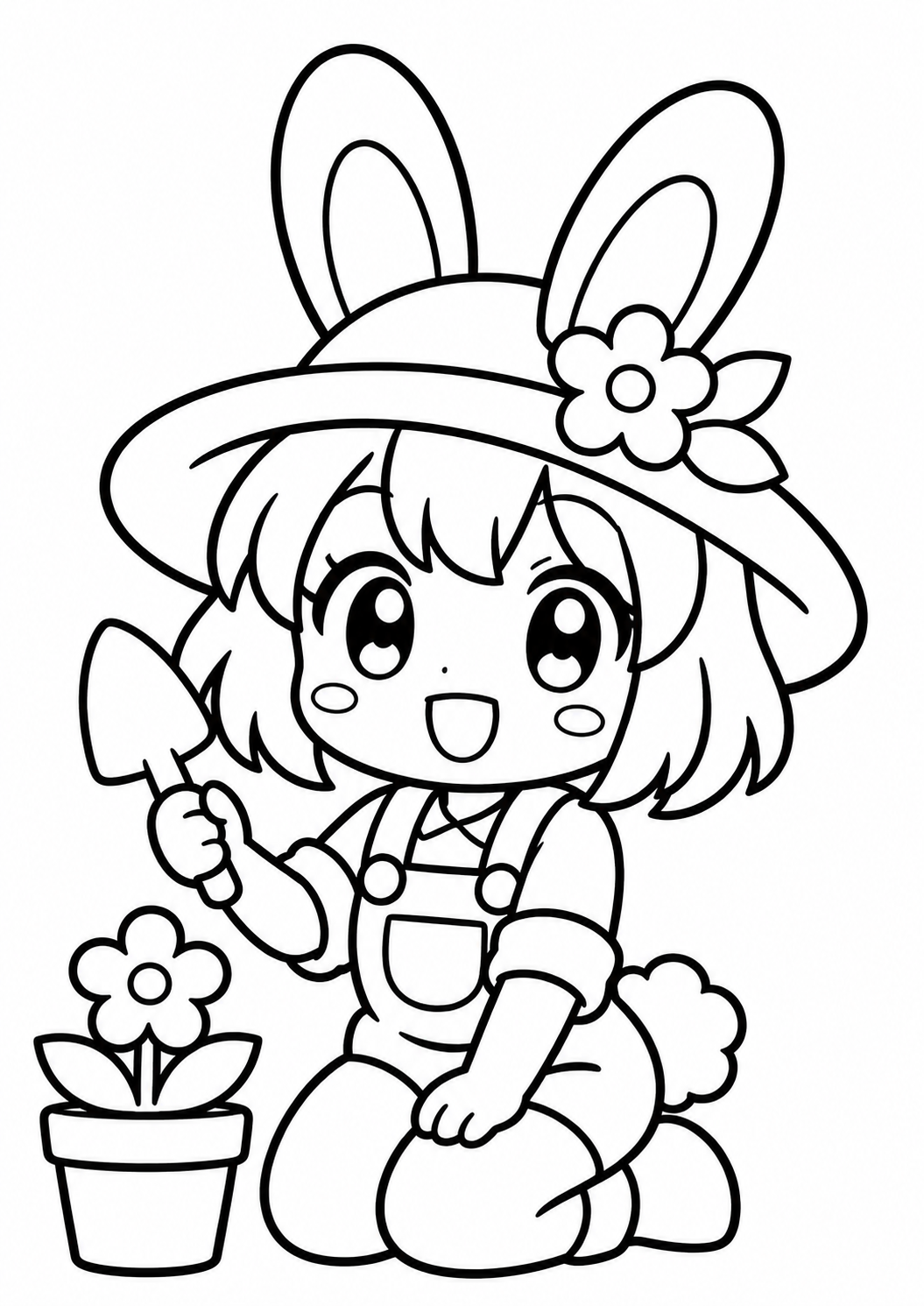
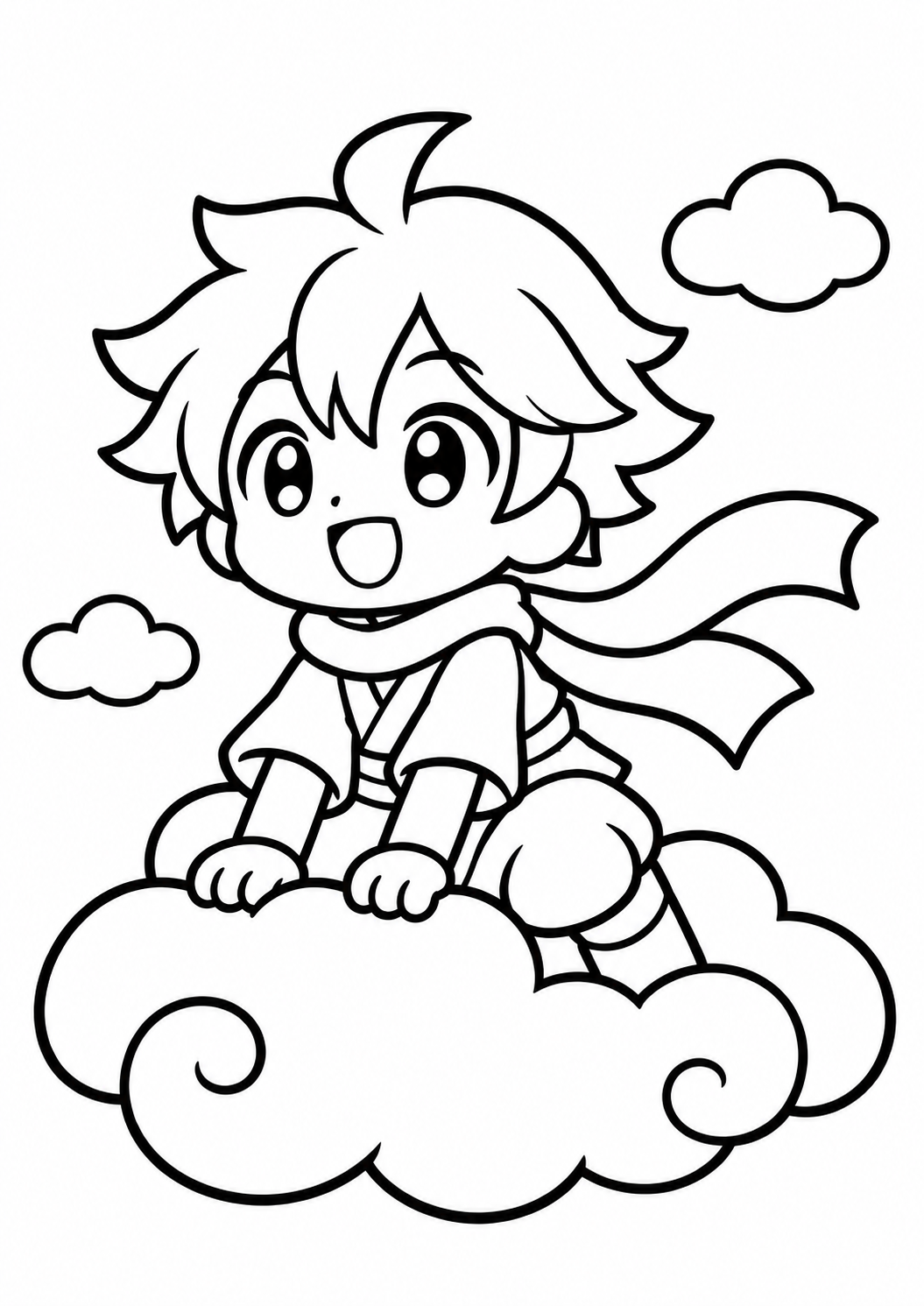
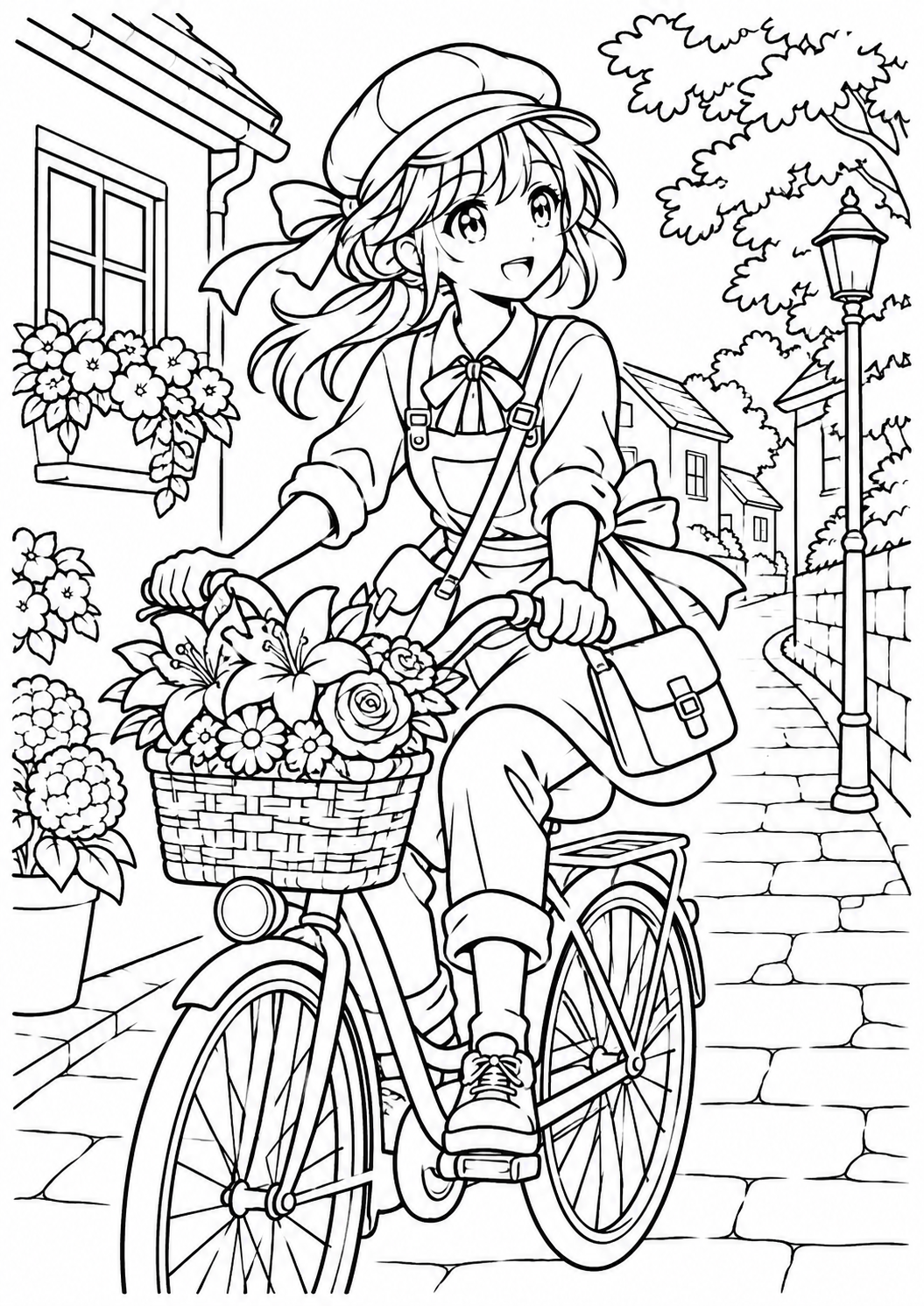
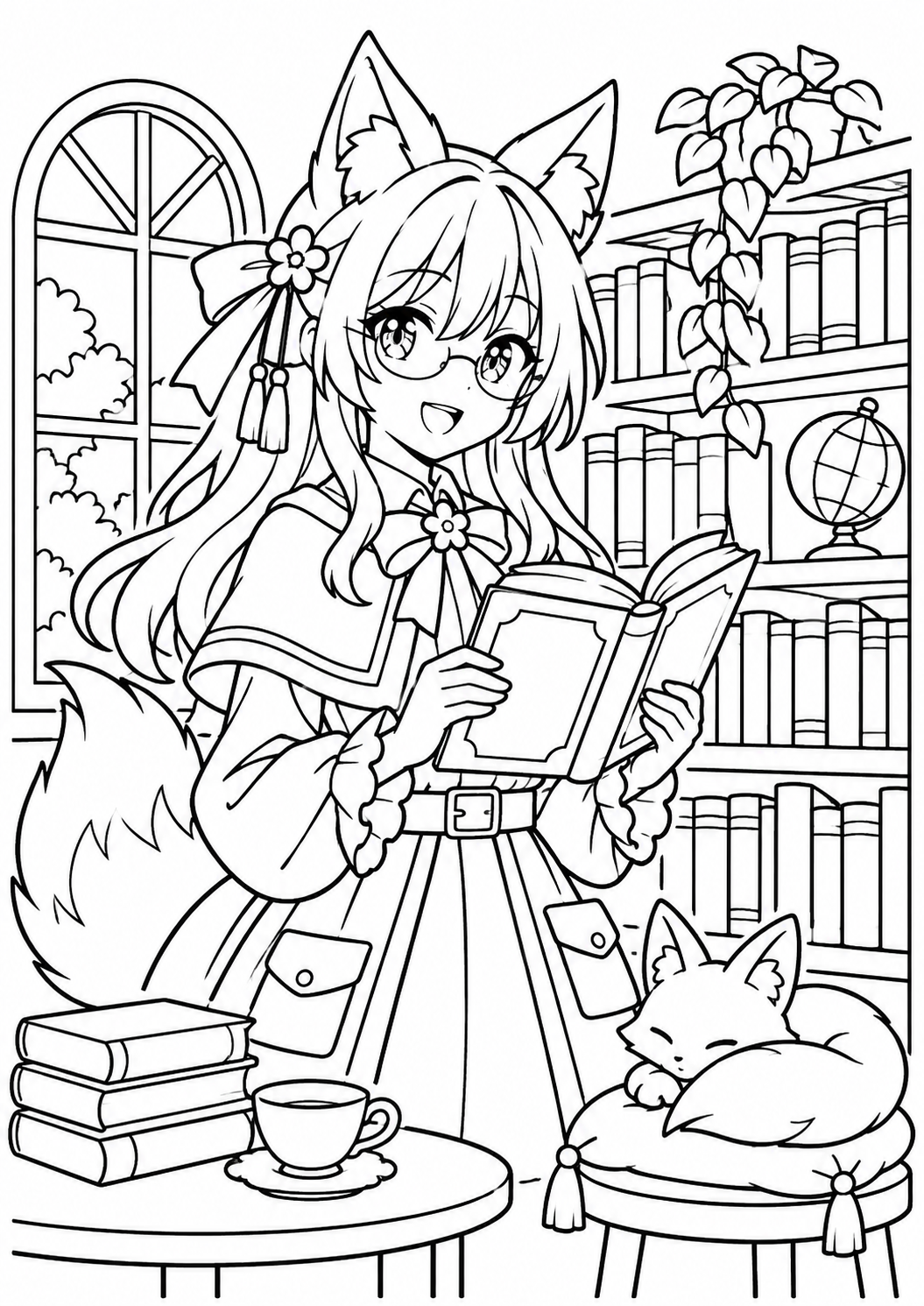
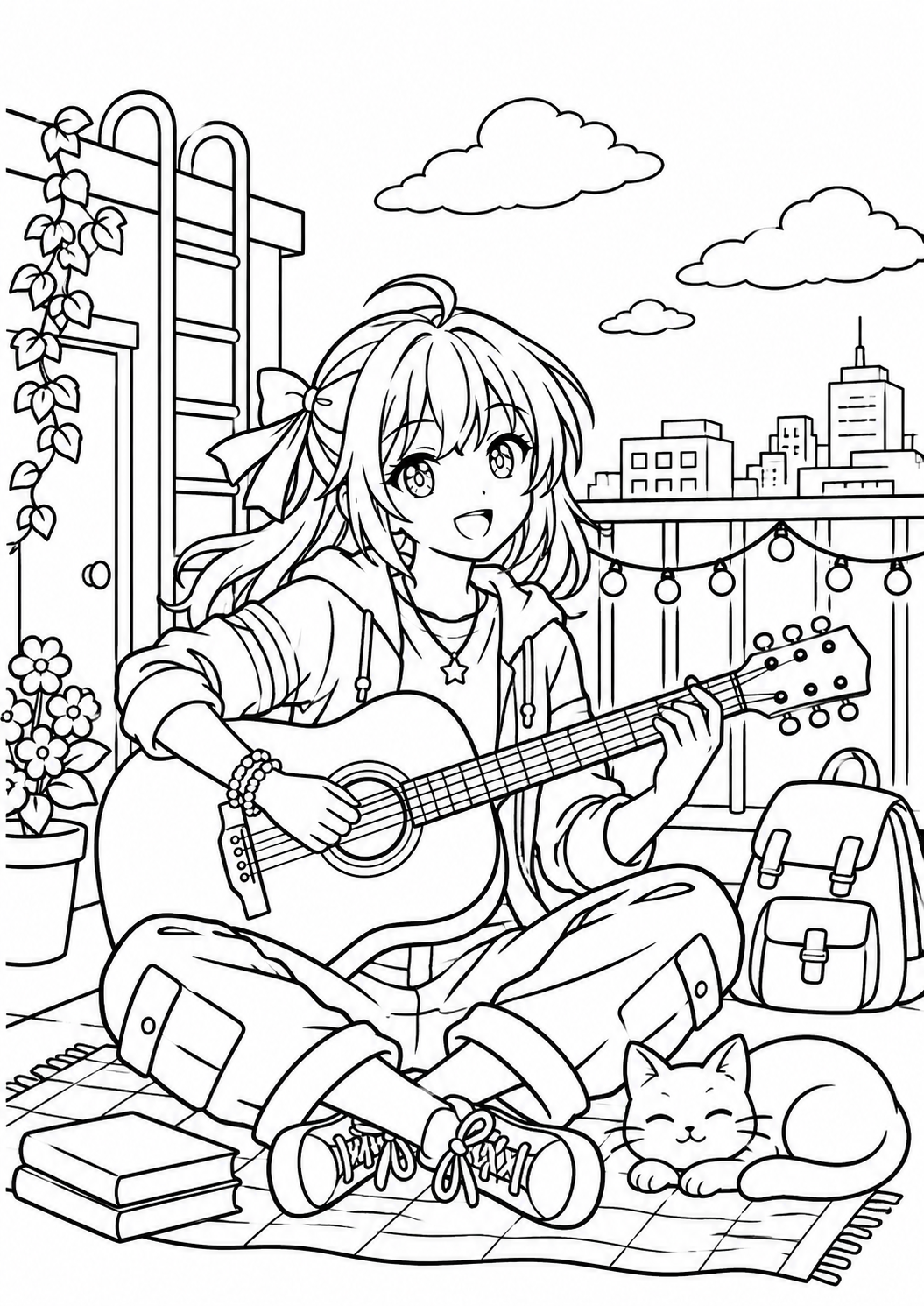
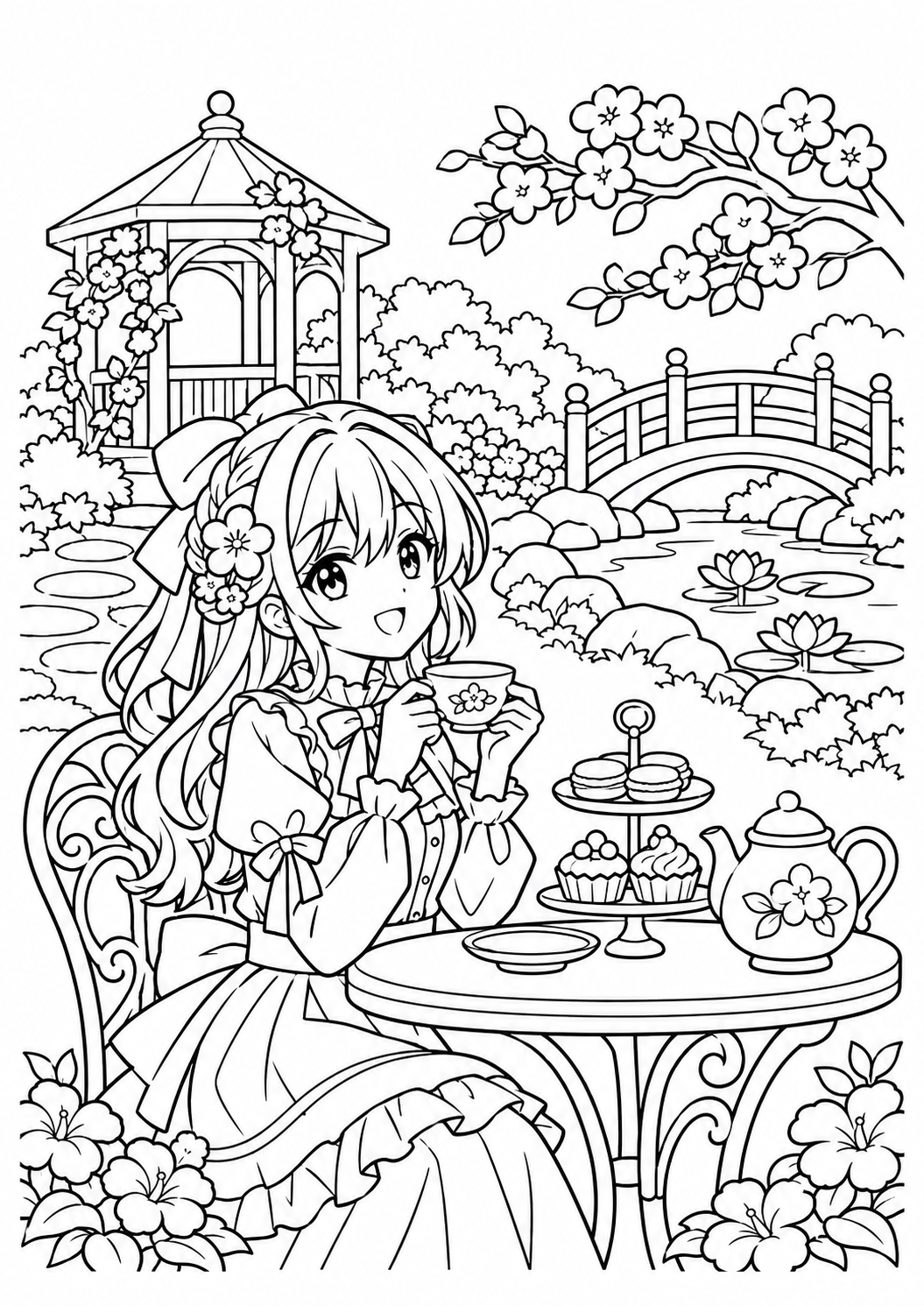
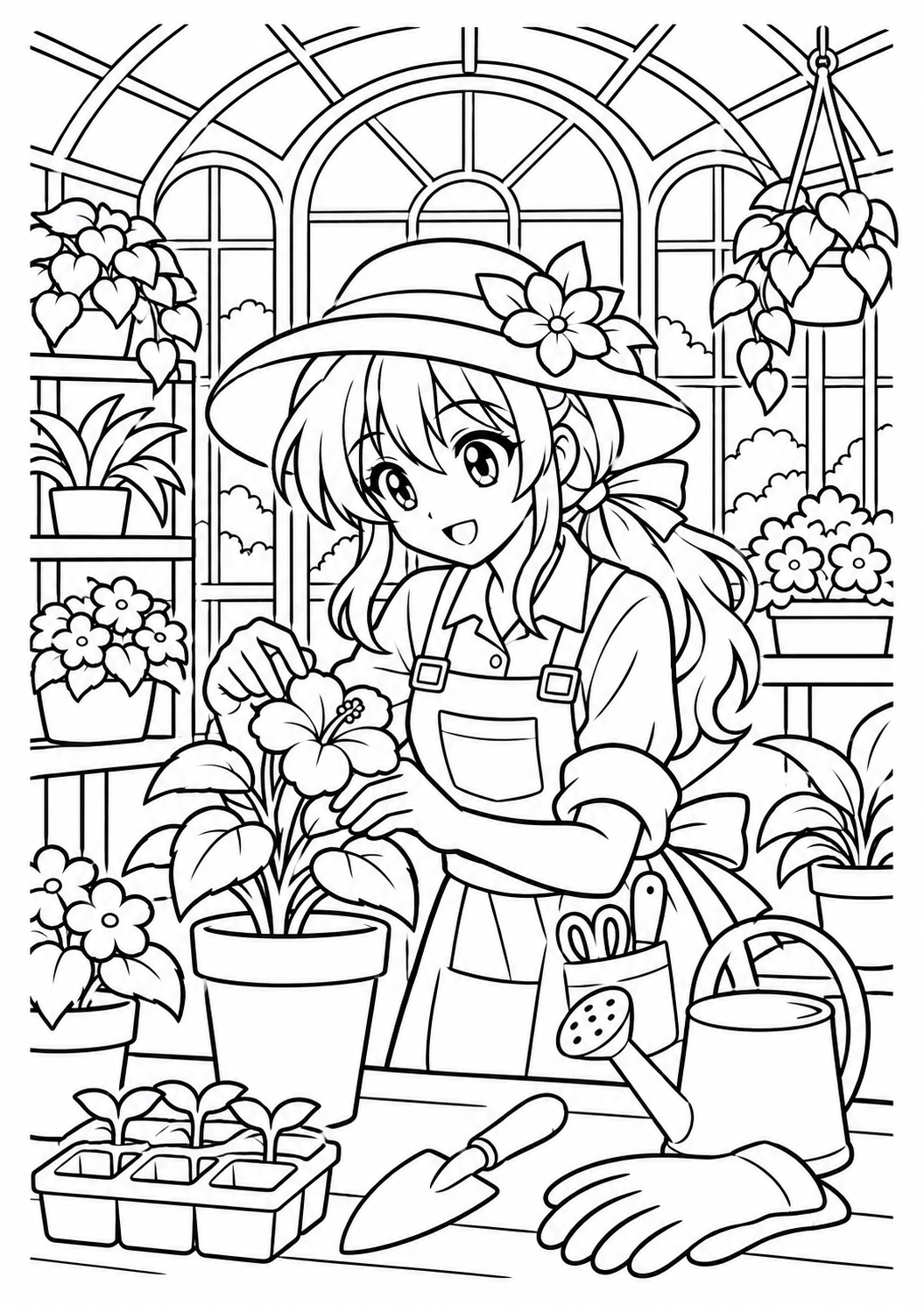
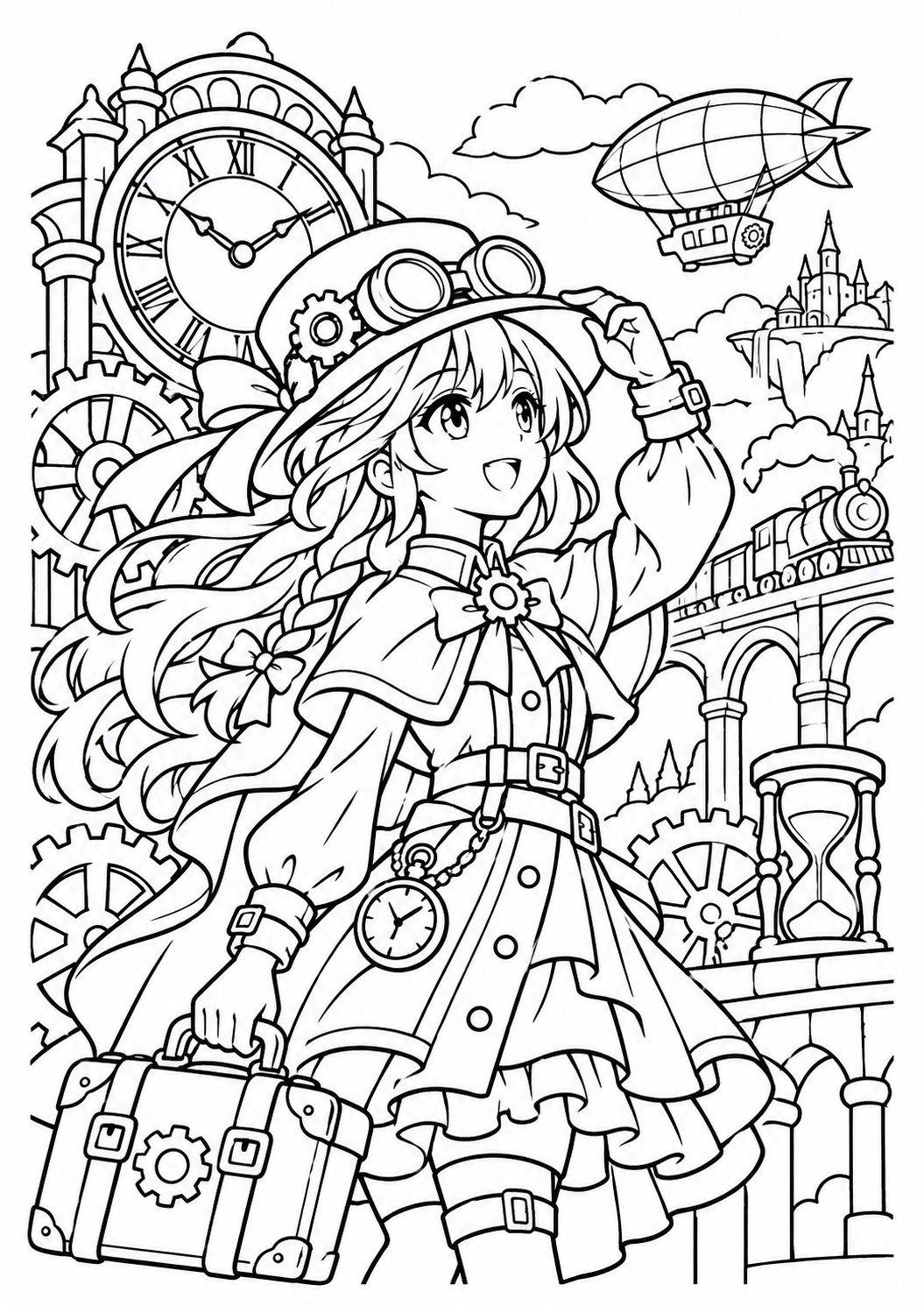
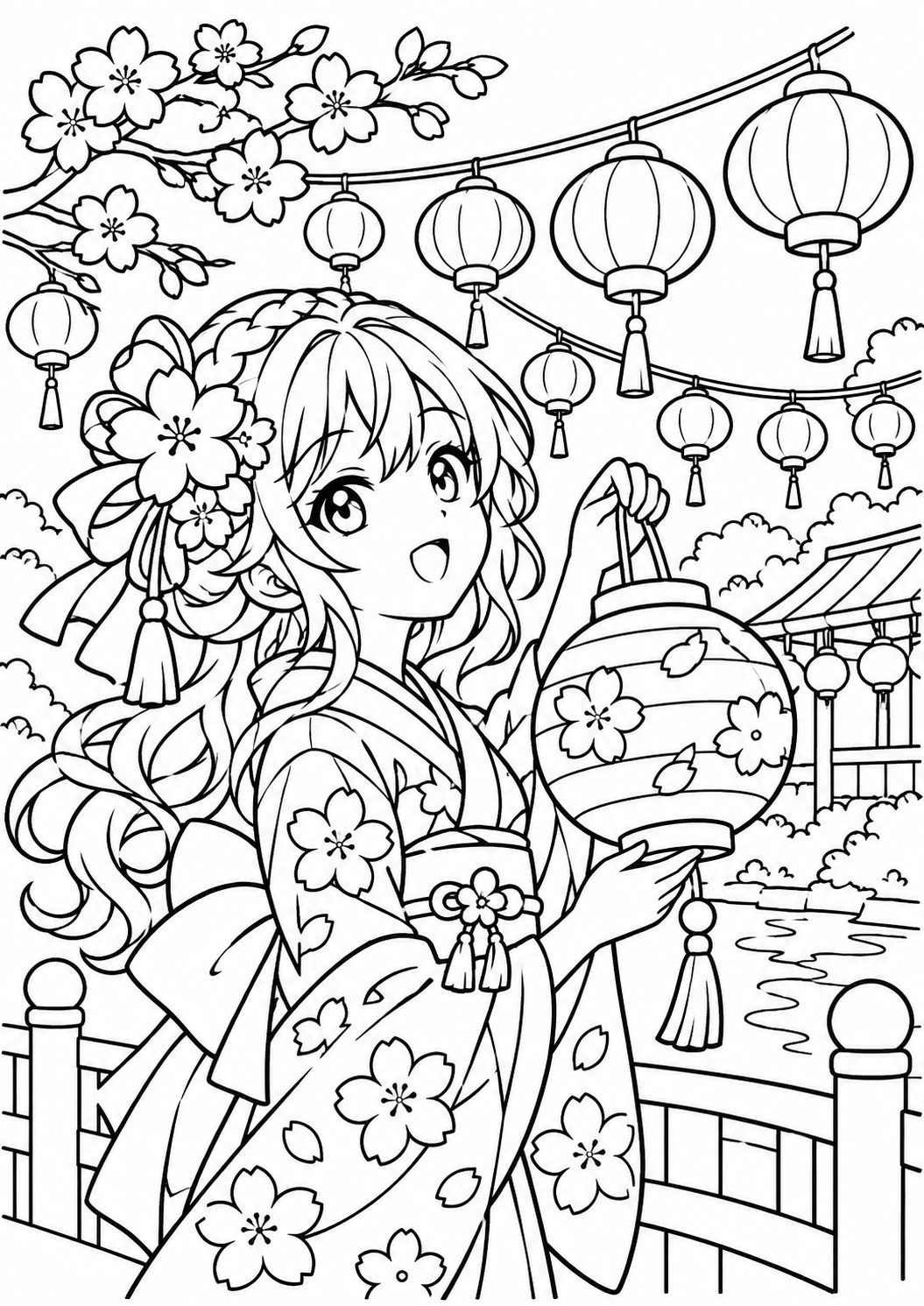
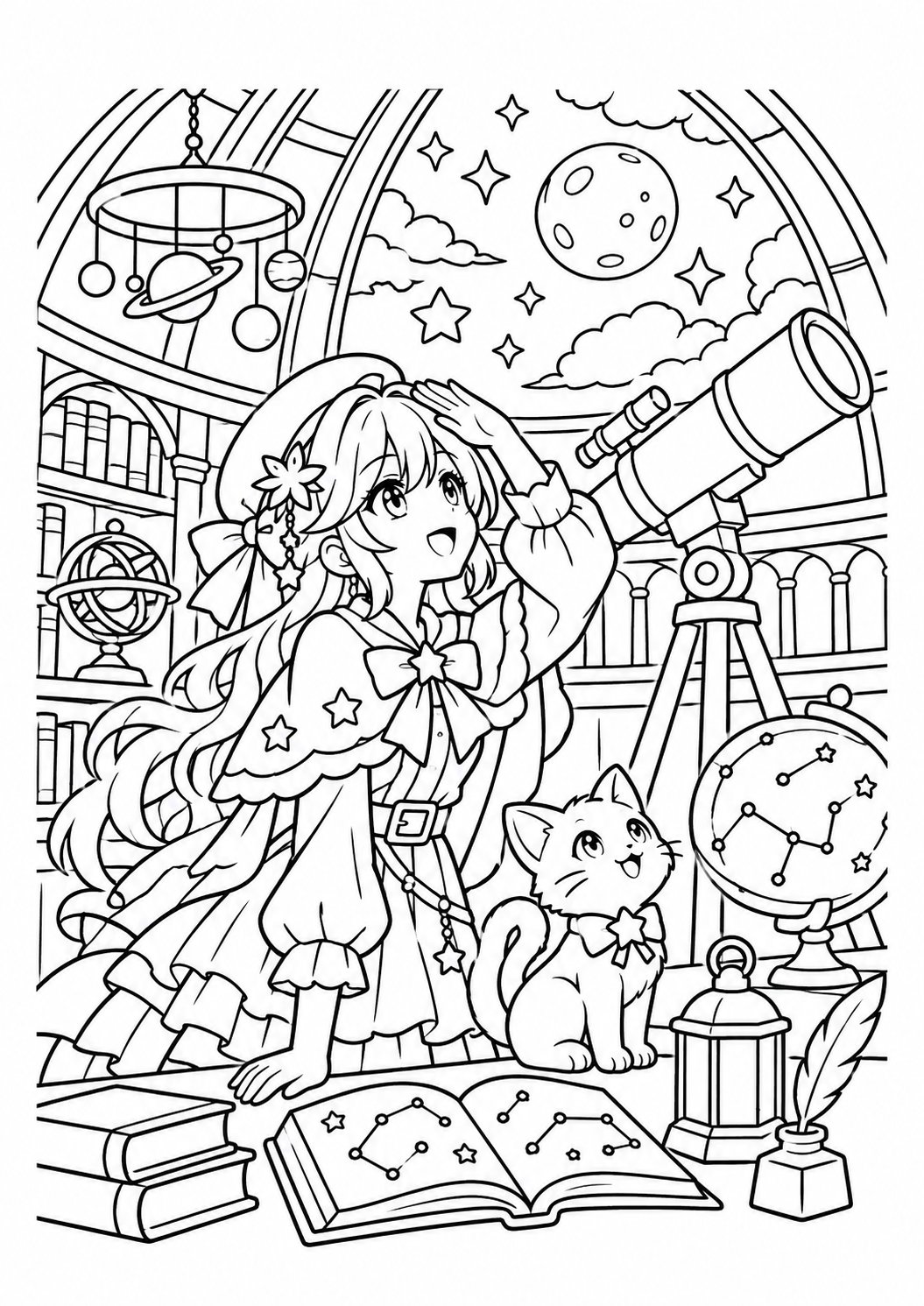
Print, color or create your own
Print the whole drawing
Use the A4 PDF for paper. In your PDF viewer, choose A4 and Fit to page, then check the preview before printing. Avoid Fill or crop settings that enlarge the artwork beyond the printable area. Your printer may add its own margins.
Start with one test page. Check the selected paper size in both the PDF viewer and printer settings, especially if the printer usually uses Letter paper. A portrait drawing should appear upright in the preview, with the scarf, stars or background details entirely inside the page. If an edge disappears, reduce the scale rather than cropping the artwork.
Keep the downloaded PDF for another print later. If you prefer a smaller picture for a notebook, reduce the print scale and check its position in the preview. The PDF opens independently of the website, so your browser navigation and gallery cards will not be included in the printout.
Choose detail to match your tools
Simple pages leave room for broad strokes and thicker tips. Intermediate pages add clothing and props. Detailed pages contain smaller spaces for fine pencils or pens. Check your printer’s paper guidance and try your coloring tools on a spare sheet first.
For pencils, begin with light pressure and build color gradually; this makes it easier to adjust a palette without filling every small shape at once. If you use markers, check the marker and paper guidance for bleed-through and protect the surface beneath the page. Thicker paper is an option only when your printer supports its size and weight.
Difficulty describes the amount of detail in the drawing, rather than a required age or skill level. You can leave a background white, use a limited palette, or color only one area. A detailed page can still be a relaxed project if you work on one prop or section at a time.
Color a PNG digitally
Open the PNG in a drawing app and keep an untouched copy. If layers are available, put your colors on a separate layer and try a Multiply blend mode for the line art. Zoom in to check gaps before using a fill tool.
On a new layer, block in a few main colors for the character and larger objects before adding shadows. A small palette can make it easier to keep clothing, accessories and background details distinct. If a bucket fill spills outside a shape, undo it and try your app’s gap-closing or selection controls, or paint that region by hand.
Save an editable version in your app’s own format so its layers remain available. Export a separate PNG when you want a flattened copy. These files are raster images: enlarging them will not create new line detail. Use the full PNG download rather than the smaller gallery thumbnail when you start coloring.
Make a new drawing from the prompt
Choose Create it now to edit the original prompt in the anime image generator. Change the character, props or setting. No reference image is needed; review the model and credits before generating. To color an existing drawing instead, use Colorize Manga, which requires sign-in and credits.
The prompt describes the subject, composition and black-and-white line treatment used for the source artwork. To explore a variation, change one idea at a time: swap the scarf for a cape, replace the stars with leaves, or give a traveler a different prop. Keep the outline and white-background instructions when you want another coloring page.
Check the editable text and the available portrait ratio before choosing Generate. The selected model determines the supported settings and credit cost; a new result will vary from the original drawing. Opening a prompt does not generate an image. If you choose the coloring tool instead, import the selected drawing first, add color notes, and compare the generated result with the original before keeping it.
Anime coloring pages FAQ
Are these anime coloring pages free to download?
Yes. The PNG and PDF files on this page are free to download, with no sign-in required. AI image generation and coloring are separate tools with account and credit requirements.
How do I print a coloring page on A4 paper?
Download PDF or open Print PDF, then use your PDF viewer’s print command. Choose A4 and Fit to page, check the preview and avoid a fill or crop setting that cuts off the drawing. Printer margins vary.
What can I use the PNG file for?
Open the PNG in a drawing app for digital coloring. Keep a copy of the original and add colors on a separate layer; a multiply line-art layer can help the black outlines remain visible. Check that your app supports layers.
Which difficulty should I choose?
Simple pages have large enclosed regions for broad pencil strokes or thicker tips. Intermediate pages add props and clothing details. Detailed pages have smaller spaces that suit fine tips and careful zooming. Choose according to your tools and the amount of detail you enjoy.
Can I change a prompt to create another drawing?
Choose Create it now to open the original prompt in the text-to-image generator. Edit the character, props or setting, then review the model, supported ratio and credit cost. No reference image is uploaded, and generation only starts when you choose Generate. Results will vary.
Can AI color one of these drawings?
Yes. Color this with AI opens the selected drawing in Colorize Manga. Sign in and import it, choose colors, and review the displayed credits before generating. AI can change details, so compare the result with the original.
Which paper and coloring tools should I use?
Match your paper to your pencils or markers and follow your printer’s supported paper guidance. Try colors on a spare sheet first. Broad tips are easier on simple pages; fine pencils or pens offer more control in detailed areas.