Photo to Anime Converter
Upload a selfie and choose an anime look. Add a description if you want to change the outfit, lighting or background.
Sign in with Google for 30 free credits, valid for 7 days. Photo conversion currently costs 10 credits per image.
JPEG, PNG or WebP
Up to 10 MB
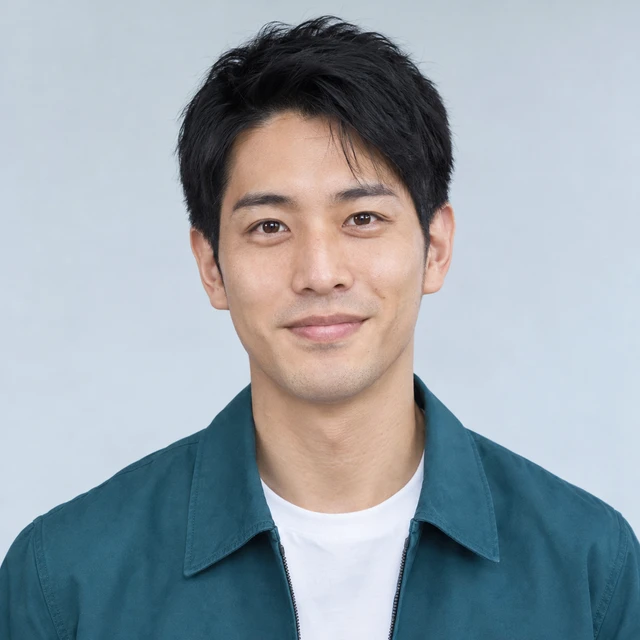
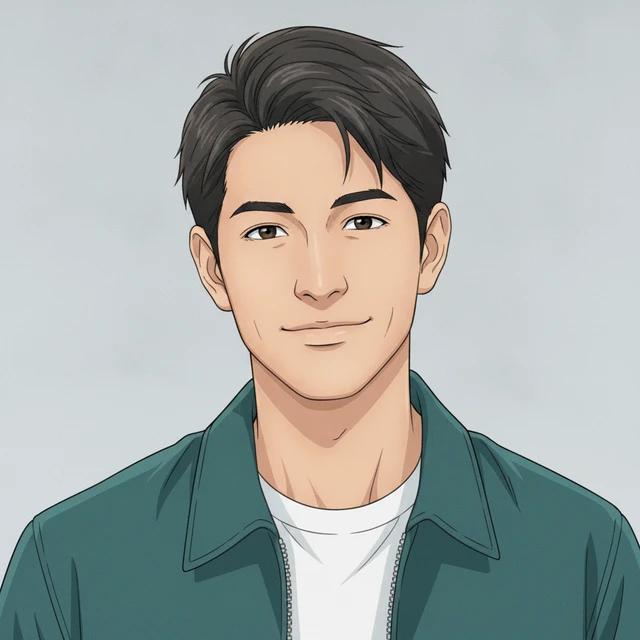
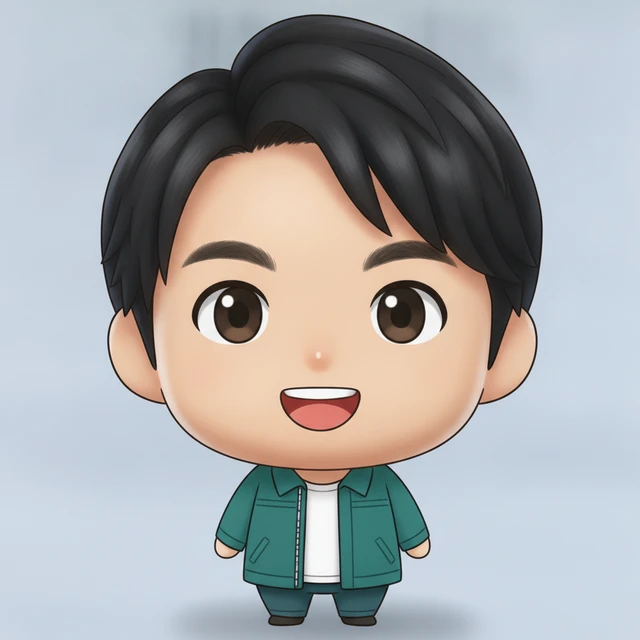
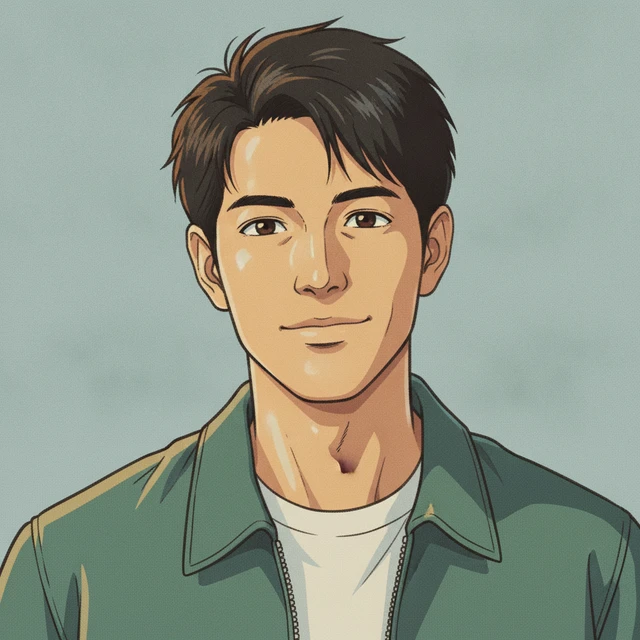
From a photo to three anime looks
These examples use AI-created adult reference portraits, not customer selfies. Each result was made from the corresponding reference using the original Nano Banana model.
Curly hair and round glasses
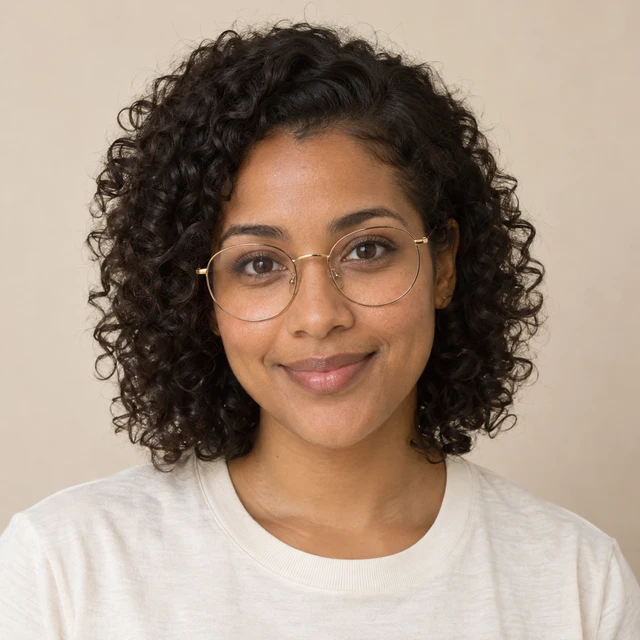
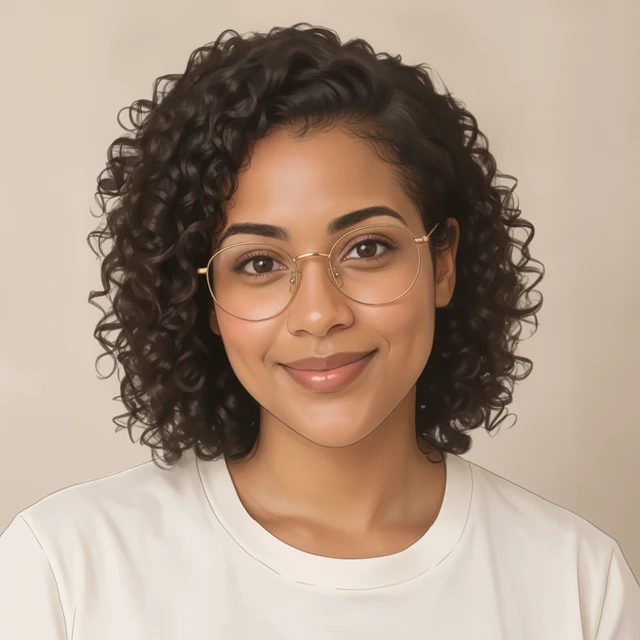
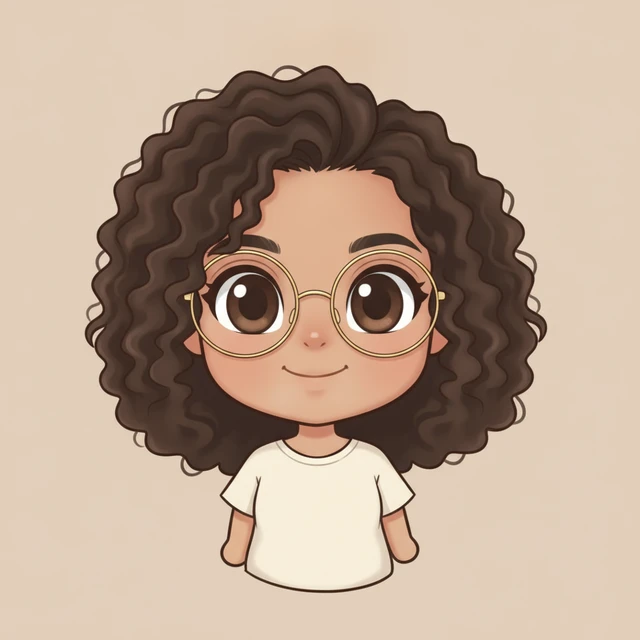
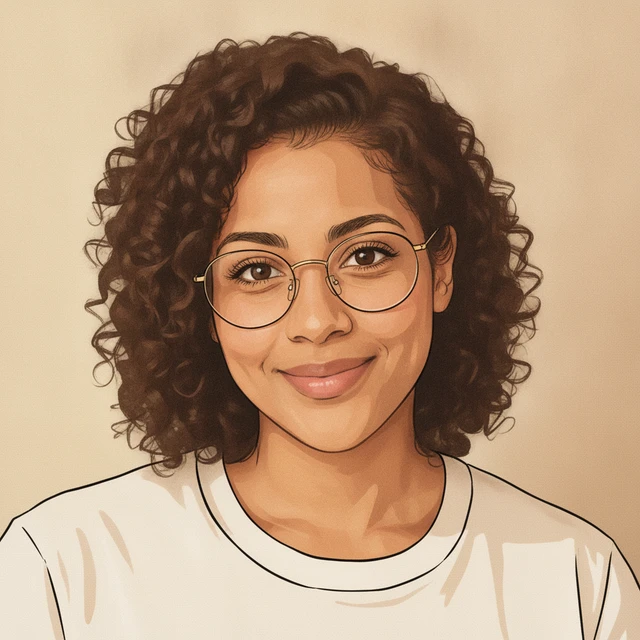
Short hair and a teal jacket
How to turn a selfie into anime
- 01
Add your photo
Sign in with Google, then choose a clear portrait. Your upload is checked before it can be used. Keep your face unobstructed and avoid group photos for your first try.
- 02
Choose a look
Start with Anime, Chibi or Retro. You can leave the description blank or add one specific change. Choose a square, portrait or landscape canvas and check the credits on the button.
- 03
Review and download
The result appears on this page after generation and safety checks. Check the face, hair and accessories, then download the image. Each new generation uses the displayed credits.
Make the reference easy to read
Use even lighting
A sharp face with soft, even light gives the model more useful detail than a dark image or a heavy beauty filter. Keep the face large enough to see clearly.
Start with one change
Try the selected style before changing the pose, outfit and setting together. Keeping the description short makes it easier to compare the effect of each new request.
Check small details
Glasses, earrings and facial features can shift during conversion. Results are whole images rather than separately editable layers, so inspect them before sharing.
Photo to anime FAQ
Can I turn a selfie into anime for free?
New accounts receive 30 signup credits once, valid for 7 days. At the current 10-credit photo conversion cost, that covers 3 images. Google sign-in is required; no credit card is needed to try. There is no daily free allowance.
Which photos can I upload?
Choose one JPEG, PNG or WebP up to 10 MB and 25 megapixels. A clear, well-lit adult portrait with one visible face is a useful starting point. Only upload photos you have permission to use. Photos are screened before generation.
Do I need to write a prompt?
No. Upload your photo and choose a style. A description is optional: use it to request a different background, clothing or lighting. Your photo remains the reference for the transformation.
Which model handles photo editing?
Photo conversion currently uses the original Nano Banana model. Other models offered for text generation are not automatically available for photo editing. The generation button shows the credit cost before you submit.
Will the result look exactly like me?
No exact likeness is guaranteed. The model can change facial details, proportions, clothing and the background. Chibi changes proportions more strongly than the Anime style. Review the result before using it as a profile picture.
Who can access my uploaded photo?
New reference uploads use an account-protected preview and expire from application access after 24 hours. Safety and generation services process the image to provide the conversion. Access expiry is separate from deletion of stored files. Generated result links can be public; review the privacy policy before uploading personal photos. Read image privacy and retention details ↗
What happens if generation fails?
The service attempts to return the reserved credits when a request fails or is blocked. A credit-return message is shown only when the return has been confirmed. If your balance looks wrong, contact support with the request Reference shown on the page.