Colorize Manga

Bring color to a black-and-white manga panel or page. Choose Shojo, Shonen, Webtoon or Vintage, then describe the colors you have in mind.

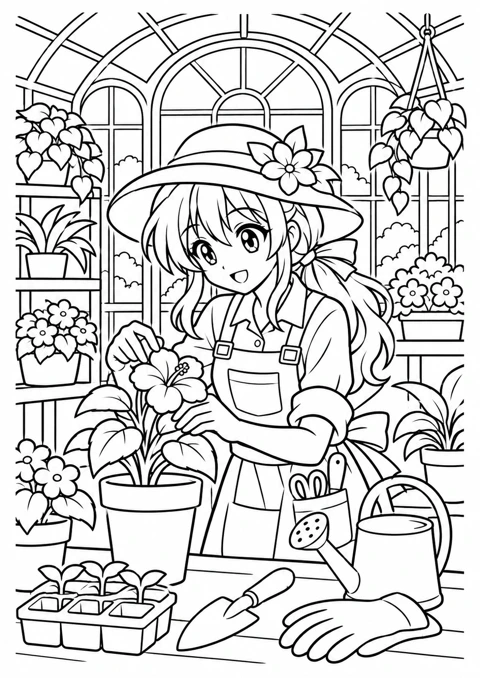
Original anime line art coloring page of greenhouse keeper

Selected coloring page

Greenhouse Keeper

After sign-in, click Import this drawing. Then choose colors and review credits before generating.

Upload your drawing, choose a palette and review the credits before coloring.

1. Upload your manga

Choose black-and-white manga or line art. Click to upload or drag one image here.

HEIC, JPEG, PNG or WebP · Up to 40 MB

2. Choose a palette

3. Colorize your image

Try a source drawing

Uncolored source images, not generated results. Select one to upload it.

One drawing, four palettes

Explore 12 actual GPT Image 2 colorization results. Choose a drawing and palette, then enlarge either image to inspect the details.

Original drawing1254 × 1254 px · 1:1
Shojo result1024 × 1024 px · 1:1

Review fine lines and lettering against the source.

Shojo, Shonen, Webtoon or Vintage: which palette to pick

Use the four presets as starting directions, then add a short color note for the details that matter to your scene. Compare the same source across styles to choose the mood before generating your own version.

Shojo for romance and gentle scenes

Soft rose, lilac and cream offer a gentle starting direction for faces, clothing and quiet backgrounds.

  • Best for: Romance, everyday conversations and expressive character close-ups.
  • Color note: Try a blush-pink outfit with a pale background, or describe warm window light for a quiet scene.

Shonen for lively character scenes

Clear reds, deep blues and warm accents offer a bolder color direction for characters with strong ink contrast.

  • Best for: Training scenes, energetic encounters and bold hero portraits.
  • Color note: Try deep blue clothing with one warm red accent, or name the main outfit color you want.

Webtoon for a clean digital mood

Teal, peach and muted violet offer a clean digital color direction for characters and their surroundings.

  • Best for: Modern school scenes, fantasy conversations and individual webcomic panels.
  • Color note: Suggest teal clothing and a pale peach background; choose the framing separately to suit your scene.

Vintage for a printed-comic feel

Muted terracotta, olive, dusty blue and cream suggest a nostalgic printed-comic mood, with visible grain in our examples.

  • Best for: Period settings, reflective scenes and a textured comic finish.
  • Color note: Try an olive jacket with warm cream surroundings, or specify a key character color to retain.

Which manga pages colorize well, and how to prepare yours

Start with a clear image whose lines, faces and panel edges are easy to see. A single character drawing is a useful first choice: you can judge hair, skin and clothing colors without following several scenes at once. Keep the full drawing inside the image, including hands, props and any border you want in the result. Use the simple example above to compare how four palettes treat the same face and flowerpot. Before uploading, leave a little space around the drawing so you can see its outer edges clearly. If a photograph includes a desk or a large empty margin, prepare a straight image of the artwork itself, taking care to keep the whole panel. This makes it easier to distinguish a framing choice from a change inside the drawing when you compare the result.

Use a clean scan for detailed artwork

For a busier illustration, choose a straight scan with enough detail to distinguish small flowers, clothing folds and background objects. The medium example gives you a closer look at these areas across the four presets. Enlarge the source and result, then compare eye contours, shadows and flower shapes before choosing a direction for your own drawing. Some of these details are redrawn in our examples; choose the version whose line treatment suits your project.

Match the page shape before coloring several panels

Keep the original page orientation when uploading a portrait manga page. This tool automatically chooses the closest ratio supported by the selected model; check that choice before generating, especially after changing models. Our complex source is 640 × 853 pixels, approximately 3:4. Its square Shojo result trims the bottom, while the square Shonen and Webtoon versions rearrange the composition but retain the hand and cup. Compare those with the manually selected 3:4 Vintage result, which includes all four panels, to decide which framing suits your page.

Prepare difficult sources before uploading

If your starting image is blurred, tilted or partly cut off, look for a sharper, complete version first. For very small lettering or dense screentones, keep the original beside the colored result and enlarge those areas during review. Our twelve examples explore three levels of drawing complexity and four palettes with GPT Image 2; use a separate close-up comparison to assess lettering and individual screentone dots. For a page with tiny captions, begin with a larger source scan if one is available so you can judge the letter shapes clearly.

Need a drawing to start? Browse our free printable anime coloring pages.

A practical manga coloring workflow

  1. Upload a clear scan with visible panel borders. Avoid blurred screenshots.
  2. Choose a palette and specify key colors such as hair, clothing and lighting.
  3. Compare the result with your source. Review lettering, hands and crowded backgrounds before downloading.

Keep the same color notes when working through several pages, but expect variation between generations.

Need to create the page first? Try our manga generator.

Colorize manga FAQ

Does it preserve every line and word?

The prompt asks the model to retain ink, panel borders and lettering, but AI can change details. Check small text, faces and screentones against your original.

Is manga colorization free?

Sign-in and credits are required. Any available welcome credits are shown in your account; review the displayed image cost before generating.

Can I colorize an entire chapter?

This tool processes one image at a time. Batch processing and consistent character colors across pages are not currently supported.

Which images work best?

Start with a sharp, straight PNG, JPEG or WebP of artwork you own or have permission to edit. Choose a complete drawing or panel, then compare small lettering and dense screentones with your source. Read the source guide.