 Anime Lens browser extension
Anime Lens
Photo to anime, from your browser.
Bring a moment from your browser into your next anime creation. Capture the page, frame your subject and open it directly in our photo-to-anime studio.
Free capture and cropping. Website account and credits required for AI generation.
From your browser to your anime studio
- 1
Capture a moment
Open Anime Lens from your browser toolbar and choose Capture this tab, or select a photo from your device.
- 2
Frame your subject
Crop, zoom and choose square, portrait or landscape framing. Save a cropped copy or send it to the studio.
- 3
Create your anime image
Review your photo on the website, choose Use this photo, sign in and check the credit cost. Generate, then download your result.
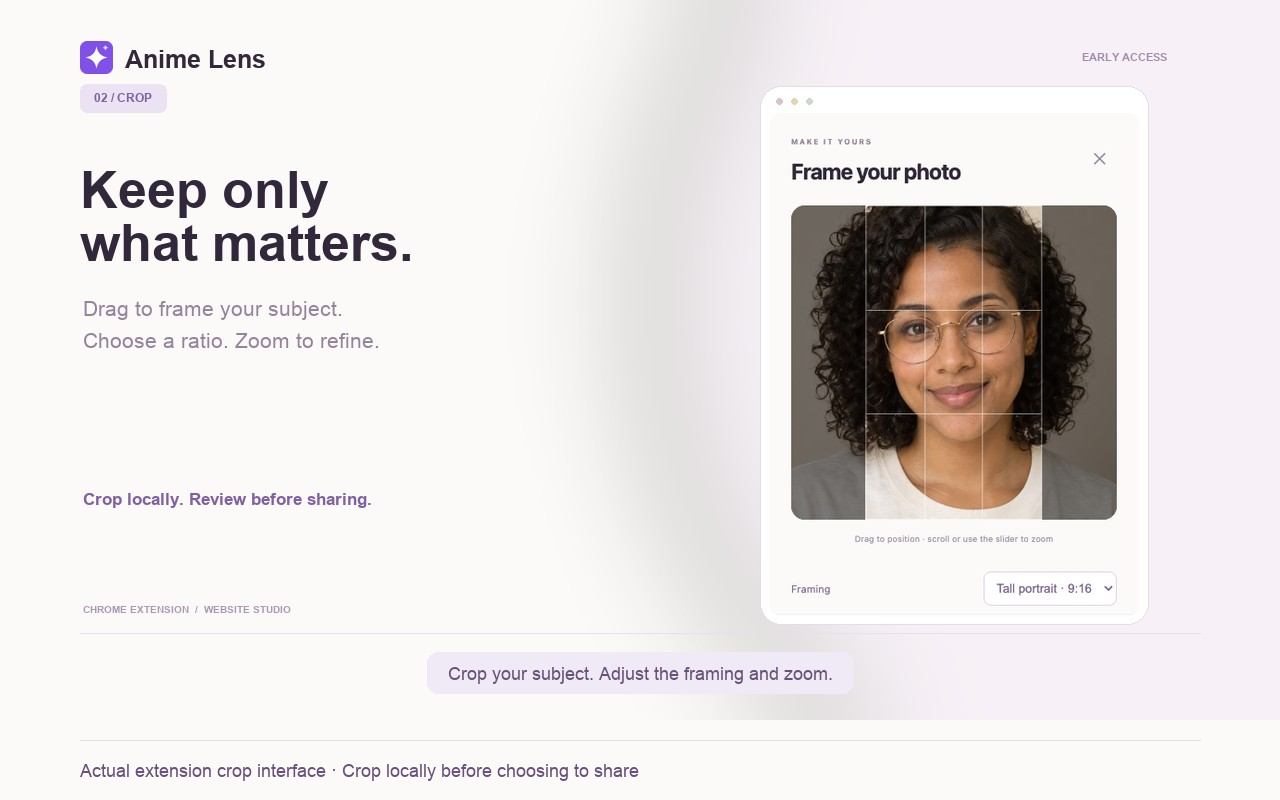
Keep the part you want to create with
Choose the subject before you leave the page. Your crop opens as a draft in the studio, so you can review it without downloading and uploading the same file again.
Capture and cropping happen on your device. Uploading the photo and generating an image are separate choices you make on the website.
Explore the photo to anime converter ↗Anime Lens FAQ
What does Anime Lens do?
Anime Lens captures the visible part of a webpage when you choose, lets you crop and zoom locally, and brings your crop into our photo-to-anime studio. You can also open a JPG, PNG or WebP from your device.
Is the extension free?
Installing Anime Lens, capturing a tab and cropping an image do not use generation credits. Creating an anime image happens on this website and requires an account and credits. The generator shows the cost before you start.
Does it generate images inside the browser panel?
The side panel prepares your photo. Choose Open studio with my photo to continue on AI Anime Generator, review the draft and select Use this photo. Then choose your settings and generate on the website.
Does it capture pages in the background?
No. Capture starts only when you choose Capture this tab. Cropping happens locally, and opening the studio does not automatically upload the crop or generate an image. You choose when to use the photo.
Can it capture an entire scrolling page?
It captures the visible part of a normal webpage, not a full scrolling page. Some protected browser pages cannot be captured. You can open a photo from your device instead.