1. Add a Santa hat — free
Upload your picture, then drag, resize and tilt the hat. Download a PNG without signing in.
Add a Santa hat for free. Turn your photo into anime art, then let your character say “Merry Christmas!” in a video. Stop and download at any step.
Drop in a portrait, a pet photo or an anime picture.
JPG, PNG or WebP · Up to 20 MBYour photo stays in this browser while you edit and download.
Place the brim along the hairline. Widen the opening to fit the head, then adjust the tilt.
Take this hat photo to step 2. Review the look and credit cost, then generate.
AI steps upload media for processing; free hat editing stays on your device.Keep the photo you love and give it a Christmas detail. This editor adds a movable Santa hat sticker without redrawing your face, clothing or background. Start with a selfie, a pet or an anime character; you decide where the hat goes.
Upload your picture, then drag, resize and tilt the hat. Download a PNG without signing in.
Carry your decorated photo into the AI creator. Choose the look and review the credits before generating. Save the image or keep going.
Use your anime picture to create a 5-second video. Your character waves and says “Merry Christmas!” Download the MP4 with sound. This optional AI step uses credits separately.
See how the same photo becomes a Santa hat PNG, an AI illustration made from that edit, and a spoken video made from the illustration. Play the video with sound to hear the greeting.
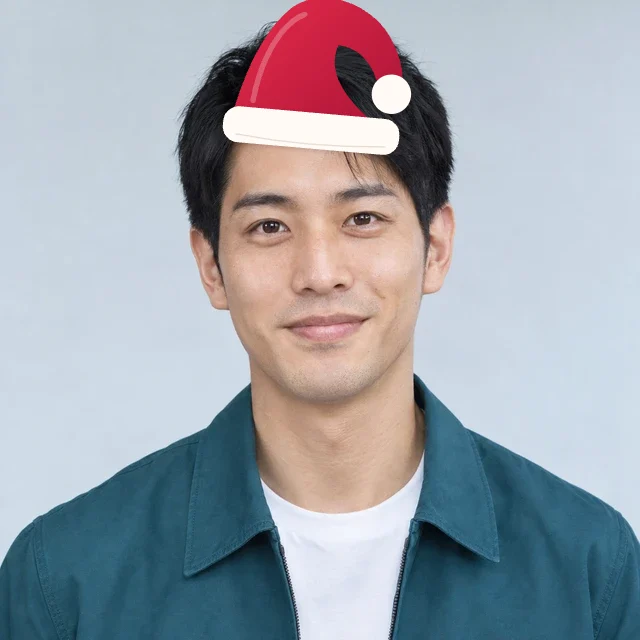
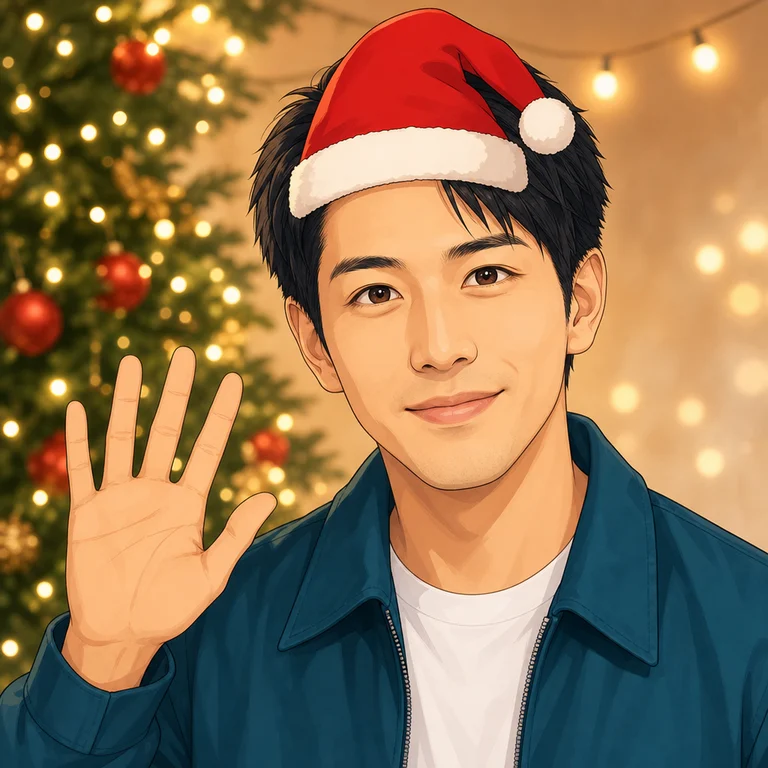
AI-created sample portrait. The video was generated from the illustration with Seedance 2.0.
Six edits made with this editor on AI-created sample portraits. Open the original to compare, or try your own picture above.
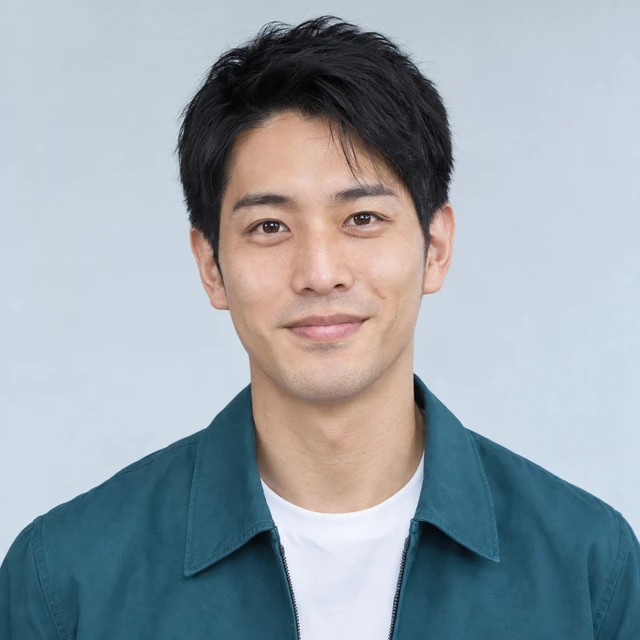 Before
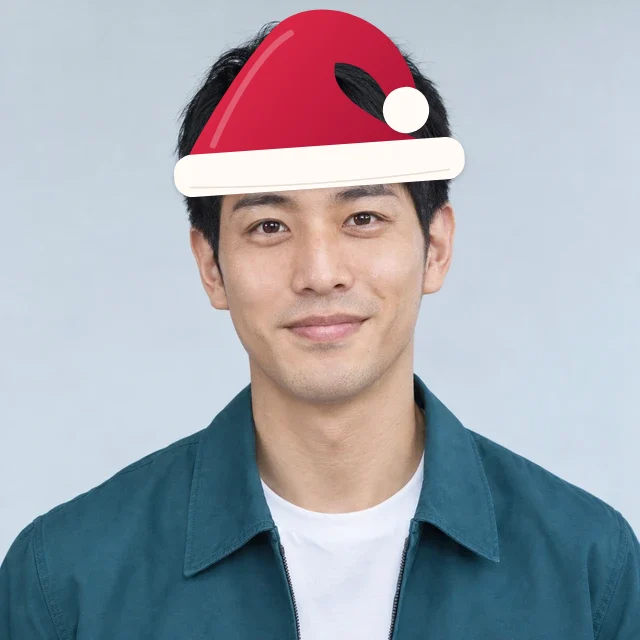 After
 Before
 After
 Before
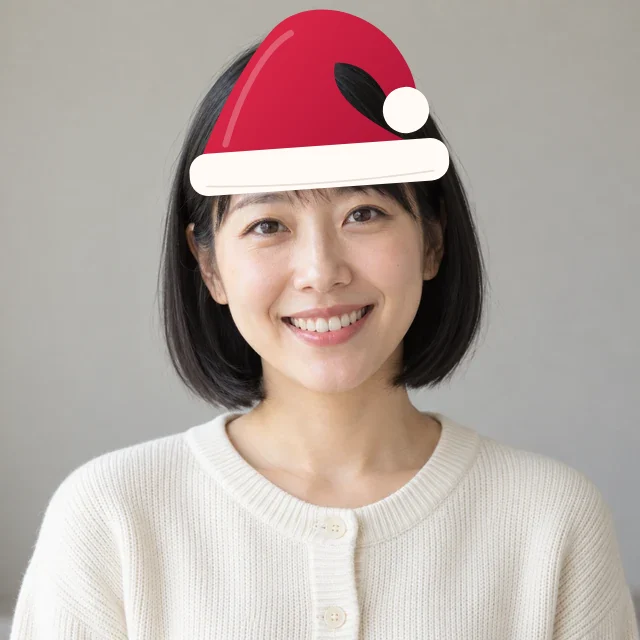 After
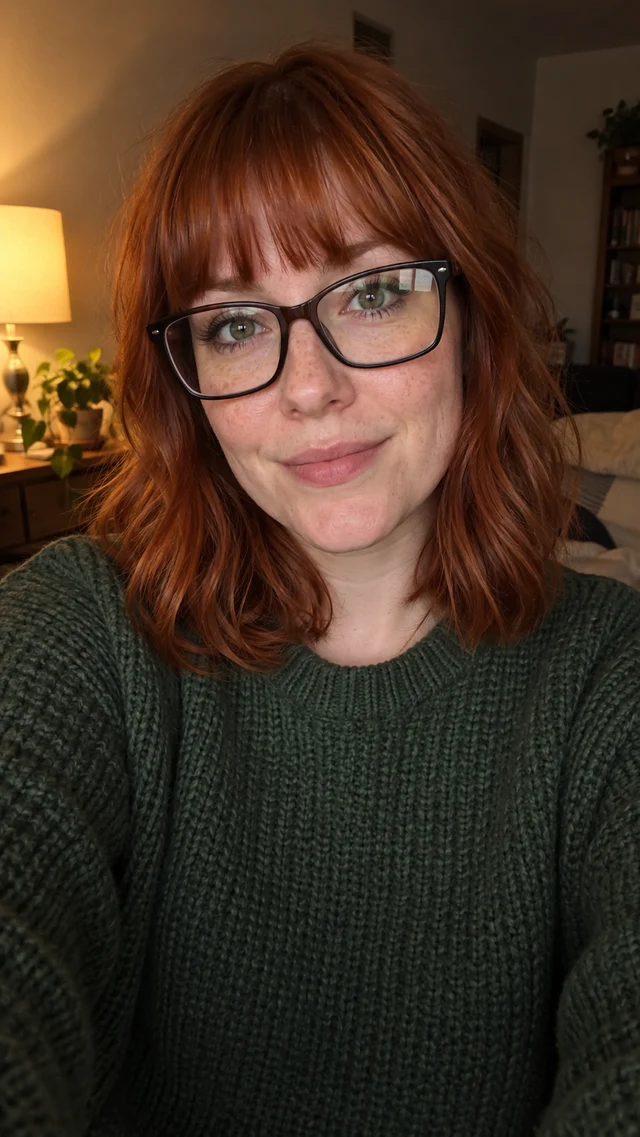 Before
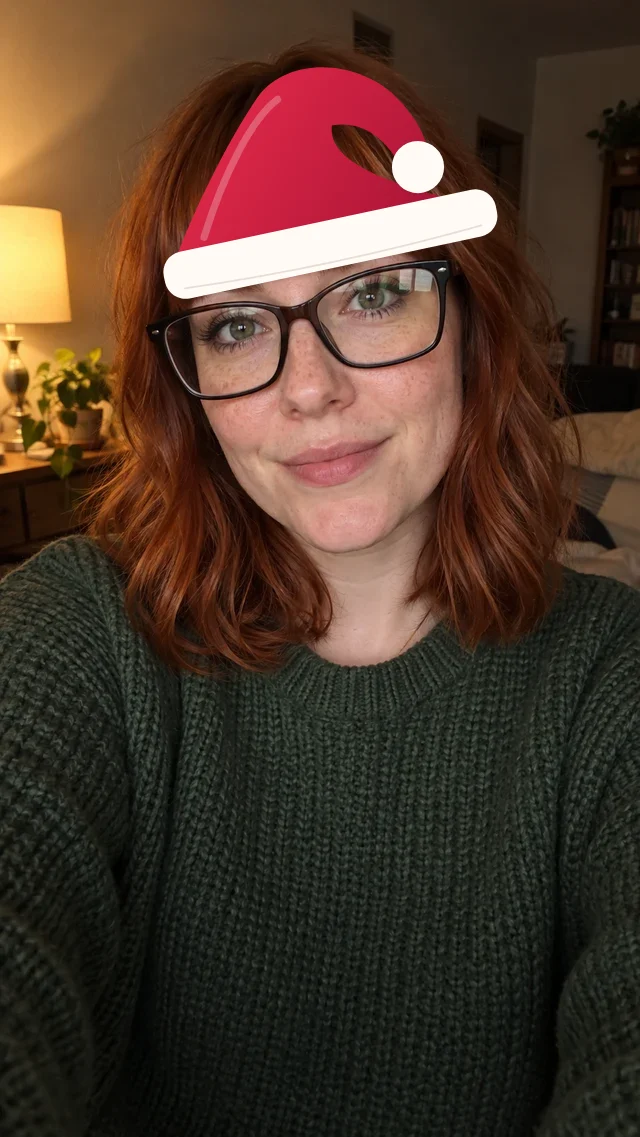 After
 Before
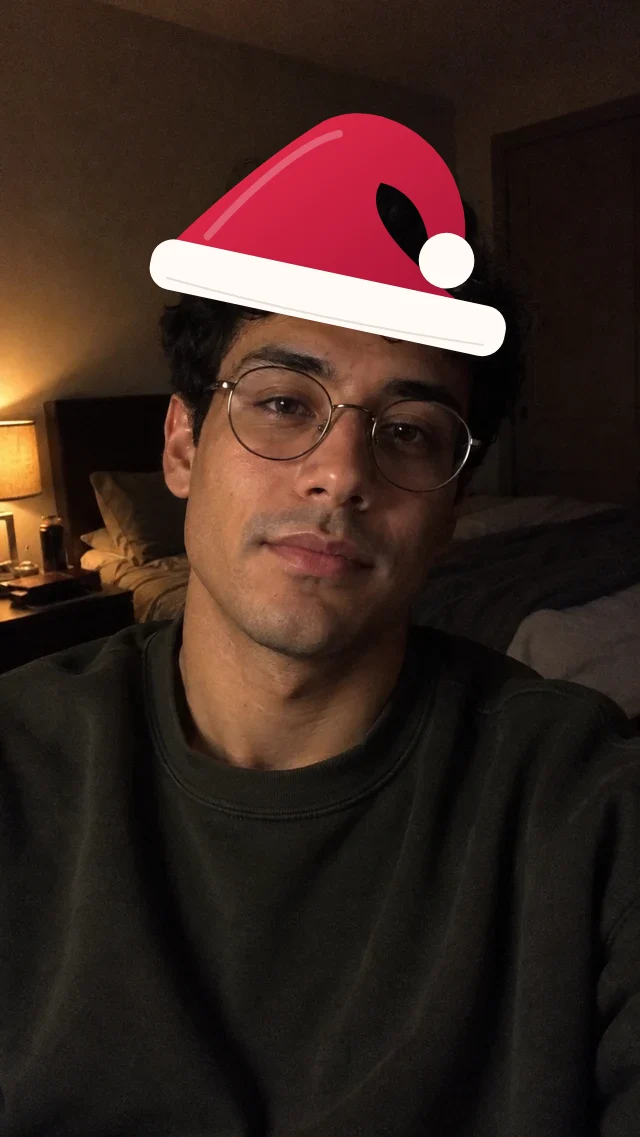 After
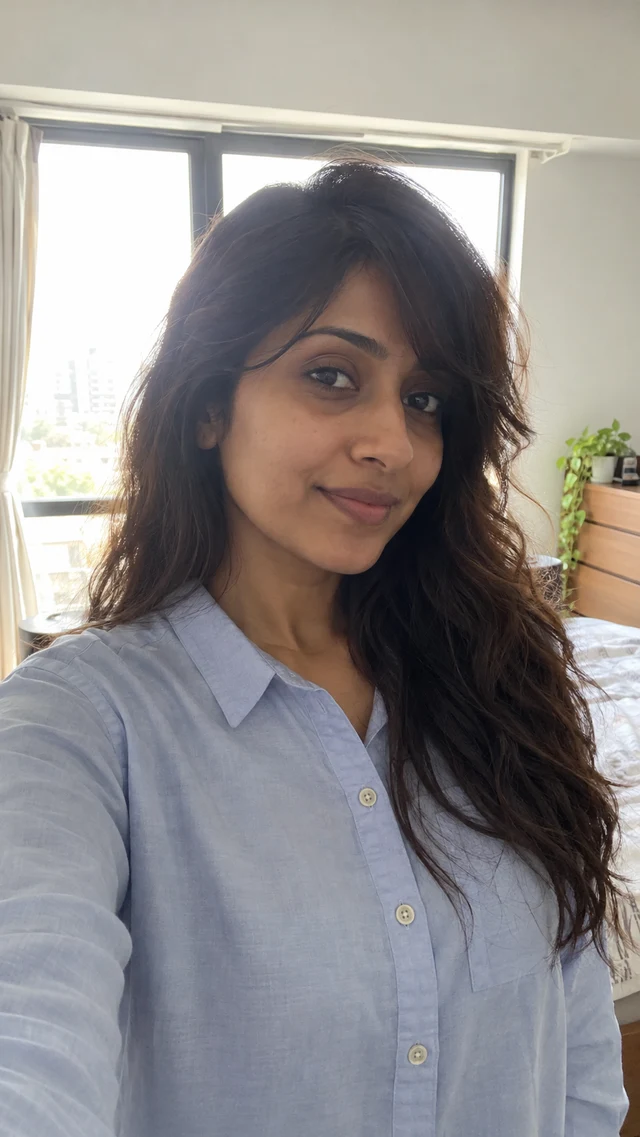 Before
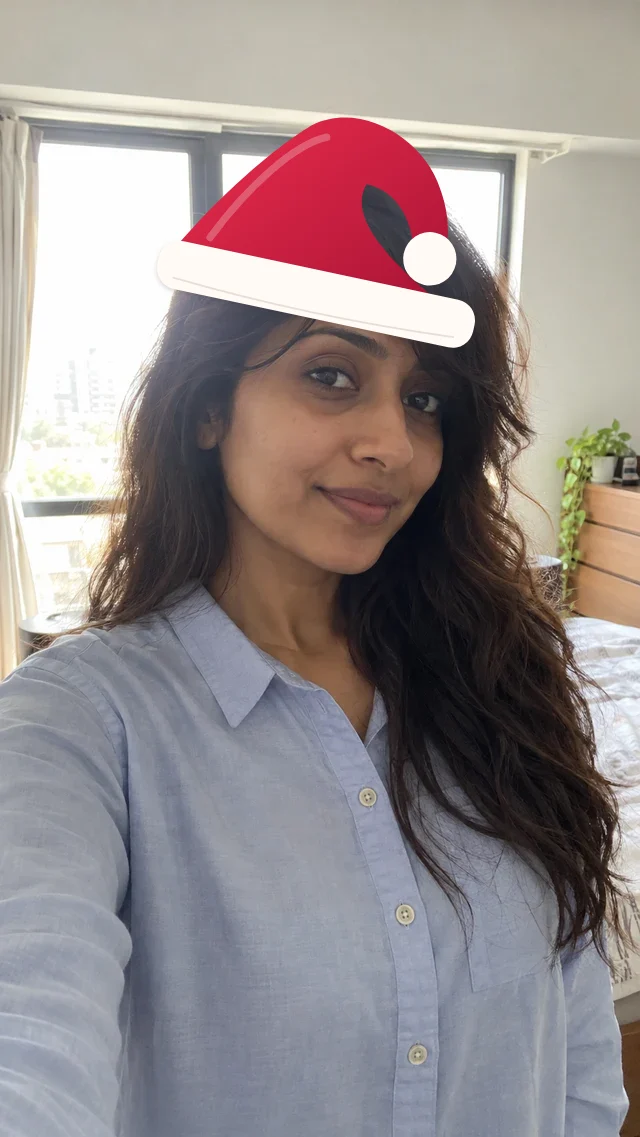 After
| Starting photo | How to make it work |
|---|---|
| Front-facing portrait | Rest the brim above the eyebrows and keep the face clear. Leave headroom for the tip and pom-pom. |
| Sideways or tilted head | Rotate and flip the hat to suit the angle. Placement is manual; there is no automatic face detection. |
| Group or pet photo | Add a separate hat for each subject, up to eight. Use the size slider for smaller faces or narrow heads. |
| Already wearing a hat | A sticker covers part of the photo; it does not remove the original hat or rebuild hidden hair. Choose another picture if the shapes clash. |
A Santa hat PFP needs room for both the face and the hat. Many apps display profile pictures in a circle, which can cut off a hat tip or pom-pom near a corner. Start with a portrait that leaves space above the head, then keep the brim close to the hairline without covering the eyes.
Drag, resize and rotate the sticker to bring the whole hat comfortably inside the picture. Before saving your profile picture in the app where you will use it, check that app’s circular crop preview. Leave a little extra headroom and make sure the pom-pom still shows at a small size. This editor downloads a rectangular PNG; it does not preview or export a circular crop.
For matching Santa hat PFPs, use a similar face size, hat angle and headroom in both portraits. Preview each one in its final profile circle. For ready-made artwork, browse our anime Christmas PFP collection.
A small hat between the ears is often enough. Keep the eyes uncovered and tilt the hat to follow the head.
Bring your own character illustration or create one with our anime avatar generator. The free sticker editor works with anime pictures too.
No prompt is needed for the free hat editor. These descriptions are for the optional photo to anime converter, which requires sign-in and credits. Copy an idea, then adjust the setting or style before generating.
Convert this portrait into anime art. Keep the red Santa hat with white fur trim, the face and the pose recognizable. Use soft studio light and a clean warm background.
Turn this photo into a cozy anime avatar with a Santa hat, knitted scarf and soft winter daylight. Keep the subject and hat placement. No text or watermark.
Illustrate this pet in anime style, keeping its fur pattern and Santa hat. Add warm fairy lights in the background. Keep the ears and face clear.
Create an anime portrait of this pair wearing Santa hats. Keep their clothing colors and composition, with a shared winter palette and subtle festive lights.
Reimagine this Santa hat photo as anime artwork in a snowy evening street, with gentle backlight and falling snow. Keep the subject recognizable.
Make a cheerful chibi version of this photo. Keep the Santa hat and main hair colors, use a clear silhouette and a simple pastel background.
Render this character in polished 2D anime style. Preserve the Santa hat, outfit colors and accessories. Use a restrained red, cream and green holiday palette.
Create a warm anime portrait from this Christmas photo. Preserve the subject and hat, leave open background space for a greeting to be added separately. Do not add lettering.
It is a free sticker editor: you place, resize and rotate the hat yourself. Unlike an automatic Santa hat filter, it does not track your face or change your features. To make a Santa hat PFP, download the PNG and check the circular crop when setting it as your profile picture.
Yes. Add, move, resize and rotate hats, then download your PNG for free. You do not need an account or credits for the sticker editor. AI images and spoken greeting videos are optional, require sign-in and use credits. Each step shows its price before you generate.
Not when you use the sticker editor or download. Those actions happen in your browser. If you choose the optional anime version, the finished photo is uploaded for safety checks and AI processing. Creating a greeting sends the chosen anime image to the video service. Video frames are checked before delivery. A temporary draft may be kept in your browser to continue through sign-in.
Yes. Add up to eight hats and position each one yourself. For pets, narrow the hat and tilt the brim between the ears. In a group picture, select a hat on the canvas to adjust that person’s hat.
The free editor places a sticker over your photo without regenerating the face or background. Downloads are PNG images, with the longest side limited to 2560 pixels. The optional AI step creates a new image and can change details.
Use JPG, PNG or WebP files under 20 MB and 40 megapixels. Leave space above the head so the hat is visible. Export HEIC photos as JPG first. Side profiles need manual rotation; the editor does not detect faces or remove an existing hat.
Yes. After creating your anime image, continue to a 5-second spoken greeting. It uses a generated voice and the fixed English phrase Merry Christmas. Your original voice is not cloned. Video generation has its own credit cost.
Yes. Touch and drag a hat to position it, then use the overall size, brim width and rotation sliders. Tap Download free PNG to save the result. On a computer, arrow keys move the selected hat; hold Shift for larger steps.