AI Anime Video Generator
Describe a scene or animate an image. Create a short anime video, then save it as MP4.
HEIC, JPEG, PNG or WebP · Up to 40 MB
From a still image to a moving scene
How to animate an anime image
This anime video generator turns one existing image into a short moving scene. Add a breeze, a blink or a slow camera move. Start with your illustration and create a silent clip at the duration and resolution you choose.
Choose your starting image
Upload a JPEG or PNG, or use Choose from my images. Pick a clear subject with space around the face. Need artwork first? Use the anime image generator before animating it.
Describe one main movement
Describe what moves and what stays steady. Choose Inspire me or copy a template below, then adapt the action to the pose in your image.
Check settings, generate and download
Choose a model and Parameters, then check the cost on Generate. Sign in, submit and follow the task. Review and download your MP4 when ready. Each new generation uses credits.
Bring a character illustration to life
Watch the Warrior Princess turn as her red cape sweeps out and settles behind her. A single illustration becomes a short character reveal.
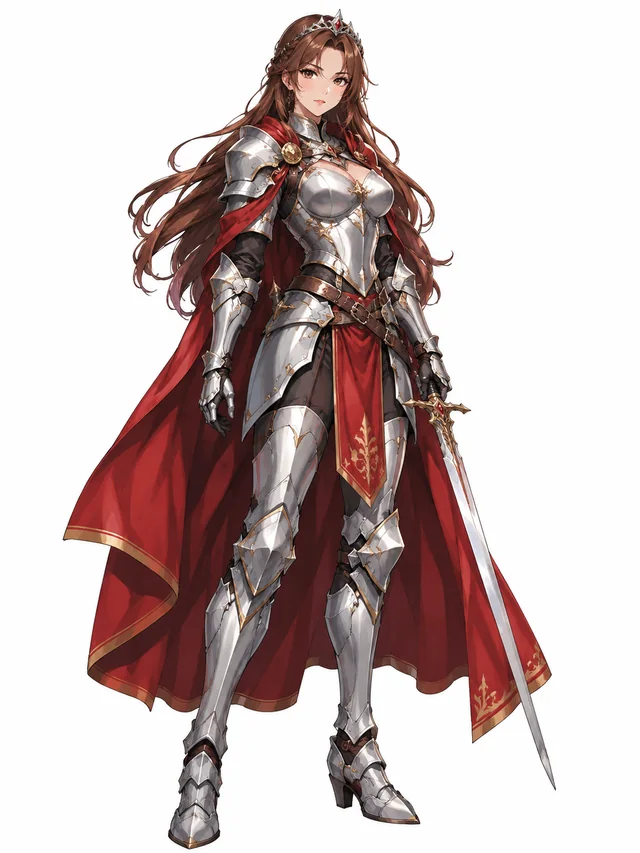
Original illustration
Character in motion
Seedance 2.0 Mini · 5s
Give your photo a dance move
Describe your own choreography or start with an editable prompt for K-pop, hip-hop, a cute dance or a slow-motion twirl in the AI dance generator.
9 video models
Compare the available resolutions and durations for silent MP4 clips.
| Model | Default clip | Other settings |
|---|---|---|
| Wan 2.2 Turbo | 5s · 480p | 480p / 720p · 5s |
| Kling 2.6 | 5s · Provider default | Model default · 5 / 10s |
| Seedance 2.0 Mini | 5s · 480p | 480p / 720p · 4 / 5 / 6 / 7 / 8 / 9 / 10s |
| Seedance 2.0 | 5s · 480p | 480p · 5s |
| Seedance 2.5 | 5s · 480p | 480p · 5s |
| Grok Imagine Video 1.5 | 6s · 480p | 480p / 720p · 6 / 7 / 8 / 9 / 10s |
| MiniMax H3 Standard | 5s · 768p | 768p · 4 / 5 / 6 / 7 / 8 / 9 / 10s |
| Wan 2.6 Flash | 5s · 720p | 720p / 1080p · 5 / 10s · Multi-shot |
| Seedance 1.0 Lite | 5s · 480p | 480p / 720p / 1080p · 5 / 10s |
Wan 2.2 Turbo
A five-second option with 480p and 720p output settings. The frame follows your source image.
Kling 2.6
Choose five or ten seconds. Resolution uses the model default and framing follows the source image.
Seedance 2.0 Mini
A five-second starting option with four-to-ten-second duration choices, 480p or 720p, and selectable framing.
Seedance 2.0
Five-second, 480p output with selectable framing. Use the model controls to check the supported settings and the quote before generating.
Seedance 2.5
Five-second, 480p output with selectable framing. Compare it against your brief rather than judging by price.
Grok Imagine Video 1.5
A six-second starting clip with 480p and 720p options.
MiniMax H3 Standard
A five-second 768p option for character motion and short scenes.
Wan 2.6 Flash
Give a character a short scene with camera cuts. Choose five or ten seconds at 720p or 1080p.
Seedance 1.0 Lite
Start with a 480p clip for a short expression, gesture or character reveal.
Eight motion prompts to copy and adapt
Each template combines a subject, action, camera direction and mood. Copy it, then adjust the motion to fit your image.
Gentle portrait breeze
A front-facing or three-quarter portrait with loose hair.
The character’s hair sways gently in a breeze. Keep the camera still, the face steady and the daylight soft.
One natural blink
A close portrait with both eyes clearly visible.
The character blinks once and opens both eyes again. Use a locked close-up, subtle breathing and a calm atmosphere.
A small head turn
A single character with space around the head.
The character turns their head slightly toward the viewer. Keep the camera steady, the expression relaxed and the background softly lit.
A quiet smile
A clean face portrait with a neutral starting expression.
The character’s expression softens into a small smile. Keep the camera fixed, movement restrained and the scene warm and peaceful.
A floating cape
A standing character with a visible cape or loose jacket.
The character stays still as the cape gently ripples. Hold a medium shot and preserve the silhouette in clear afternoon light.
Slow camera push
A spacious illustration with a clearly separated subject.
The camera slowly moves closer to the character. Preserve the pose and background geometry, with subtle hair movement and a cinematic mood.
Garden atmosphere
A garden scene with flowers away from the face.
Flowers and leaves sway gently around the still character. Lock the camera, preserve facial details and keep the garden bright and tranquil.
Lakeside reflections
A landscape or character scene with visible water.
Small ripples move across the lake while the subject stays still. Use a fixed wide view, stable buildings and soft morning reflections.
Refine one instruction at a time. Reduce head movement if the face drifts; lock the camera if its movement distracts from the subject.
What works well in a short anime video?
Use an anime video maker for one clear moment. Here are four useful starting points:
- Moving portraits: give an anime avatar a blink or small smile. Check whether your destination supports video profile pictures before uploading.
- Short social edits: create a visual clip for a Reel or TikTok, then add your own permitted audio and captions in an editor.
- OC introductions: show an original character design with subtle hair or clothing movement while keeping its main features visible.
- Creative variations: animate artwork you made or have permission to use. A new motion can change the mood without requiring a complete multi-shot story.
| Good starting point | Use extra care with |
|---|---|
| One clearly framed character, gentle hair motion or a blink. | Overlapping people and fast gestures. Start with one subject if faces or hands are difficult to distinguish. |
| Small movements that fit inside the existing frame. | Large turns, dancing or exact object interactions. Prefer a simpler action when the pose leaves little room to move. |
| A steady scene or a slow camera move. | Wan 2.6 Flash can change camera angles within a single 10-second generation, without a timeline editor. For a longer sequence, assemble your clips in an editor. |
| An illustration with a clear face and background. | Small lettering and fine accessories. Add important text afterward rather than relying on the model to preserve it. |
| Silent output with supported model-specific length and framing. | Music, dialogue or guaranteed seamless loops. Add audio separately and inspect the loop transition yourself. |
For loops, inspect the join between the last and first frame. Seamless motion is not automatic, and reversing footage can make flying objects or flowing water move unnaturally.
If a generation fails or you leave the page
An accepted task continues in the background. Return with the same account and open Tasks to check progress. A confirmed failed generation releases or returns its reserved credits; an uncertain submission stays under status checking. Do not submit it again while that check is pending. A completed clip with unwanted motion is different from a failed job, so review the result before paying for another attempt. Download finished MP4s within seven days to keep a copy.
Anime video generator FAQ
Can I make an anime video from a single image?
Yes. Upload a JPEG or PNG, or choose an available creation from your account. The starting image supplies the character and setting; your motion description tells the model what should move. Create an image first if you currently have only a text idea.
How long is the video, and does it have sound?
Grok starts at six seconds without audio. Choose a model to see its available durations in Parameters.
Do I have to describe the motion myself?
Use Inspire me in the generator, or copy one of the eight templates on this page and paste it into the motion box. Adjust the action to suit your image. Copying a prompt does not generate a video or use credits.
Which model should I start with?
Grok starts at 480p for six seconds. Try it for a short character motion or reveal.
How many credits does a video cost?
The Generate button shows the quote for the clip you are about to submit.
Can I make an anime GIF from it?
Yes. When your video is ready, open View result, choose Export GIF, then Download GIF. The export uses the first 3 seconds at up to 320px and 10 frames per second. Exporting an existing video uses no extra site credits; generating a new video still uses the model quote shown on Generate. Check the loop transition before sharing.
Why did my video come out blurry or distorted?
Try a clearer starting image and a smaller movement. Overlapping faces, fine text, intricate hands and large pose changes can be difficult to preserve. Inspect the whole clip, then adjust one instruction before generating again. Visual imperfections alone do not trigger an automatic credit refund.
Can I use the video commercially?
Use source artwork and character designs you own or have permission to use, and review our Terms before publishing commercially. Check any added music, logos and recognizable characters separately. Generating a clip does not grant rights to somebody else’s original material.