1. Give the character a reason to exist
A repair technician with cyan eyes and an orange tool pouch: a few distinctive choices are enough to give an OC a personality you want to explore. Relay’s practical outfit and handheld scanner make the role visible at a glance. In our OC Maker, Builder helps you turn those choices into a character brief, so you can start creating without writing a detailed prompt from scratch.
A useful brief connects appearance to action. What does the character carry? What would they do when threatened? Relay’s practical repair role gives way to an electrical attack, so cyan light becomes a thread between the face and the power effect.
Try this character brief
An original worker-drone repair technician. Cyan eyes on a dark face-screen, silver hair under a black beanie, a charcoal jacket with teal trim, sturdy boots and an orange utility pouch. Carry a handheld scanner. Make the silhouette clear and the outfit practical.
2. Choose an image to anchor the design
This original image established Relay’s look. Before requesting variations, pick out the features that make the character recognizable: the cyan screen eyes, silver hair, black beanie, charcoal-and-teal clothing and orange pouch.
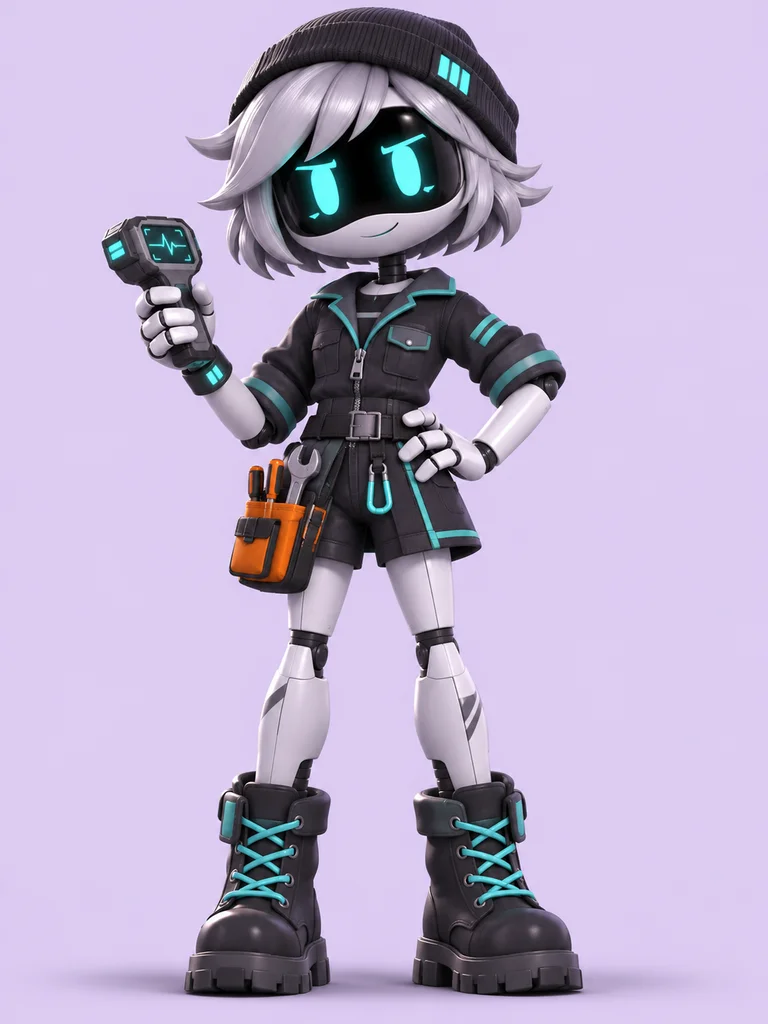
View original image prompt
Create one polished full-body original Murder Drones-inspired fan robot character illustration for an OC maker website. Portrait 3:4, pale lavender plain studio background, no text no logos no watermark. Character is NOT any existing cast member. Name concept: Relay, a resourceful worker drone repair technician. Black glossy wide face-screen with two expressive cyan LED eyes, rounded white metal head with short uneven silver bob hair, small charcoal knit cap, compact stylized mechanical body, white articulated hands and legs, oversized dark work boots with cyan laces, charcoal mechanic jacket with teal trim and a small orange tool pouch, holding a little unbranded repair scanner. Friendly quietly determined expression. Full head and both feet clearly visible, centered, beautiful detailed cel-shaded 3D animation aesthetic, strong silhouette, clean robotics rather than human skin, soft ground shadow. Safe nonviolent robot design. White and dark graphite metal contrasted against cyan eye glow. No lettering anywhere.
Found a design you love? Make it the reference for what comes next. AI Anime Generator’s Prepare actions let you build on a generated result, carrying a visual starting point into a new view or pose. Save the original too, so you can return to your favorite version whenever you want to explore a different direction.
3. Explore two directions from the same original
One character can give you more than one kind of artwork. A three-view sheet helps you develop the design for a character brief or fan project; an action image gives that character a scene to inhabit. These two Relay variations both started from the original reference, keeping the design connected as the composition changed.
Branch A: inspect the design
A front, side and back sheet helps you examine the silhouette, clothing and pouch placement.
Branch B: stage the action
A forward dash puts electrical arcs, body language and the ruined-city setting into a single frame.
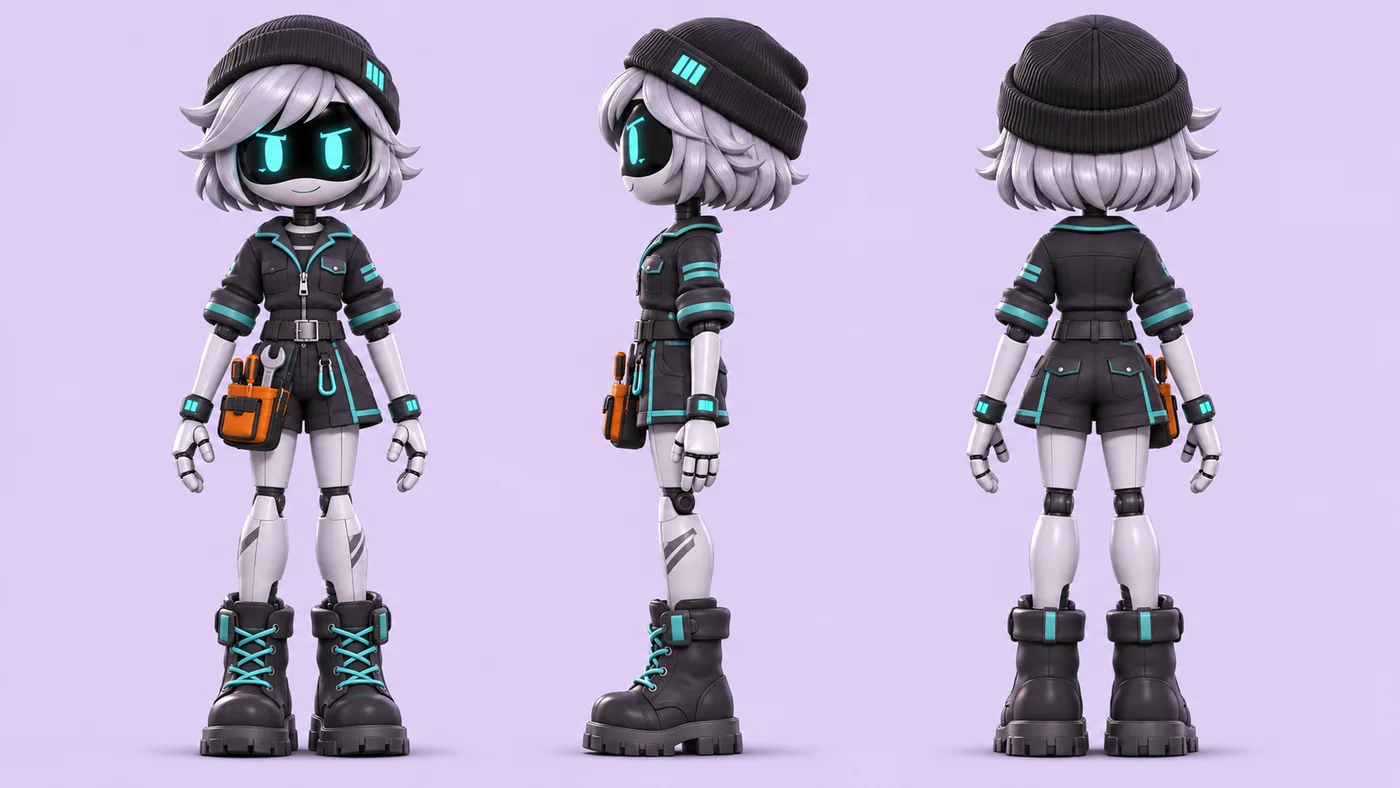
View three-view prompt
Use this exact original robot character as the identity reference. Create a clean landscape 16:9 three-view reference sheet: front view, exact side profile, back view, evenly spaced and matched scale with feet aligned. Same white mechanical worker robot Relay, black face screen and cyan LED eyes, same silver bob hair, charcoal knit cap, charcoal jacket with teal trim, orange tool pouch and dark cyan-laced boots. Preserve the same proportions and signature design. Neutral upright stance. No wings or tail. Plain pale lavender background, no labels, no text, no border. Full head and feet in each view. Crisp polished cel-shaded 3D animation aesthetics. The back view should show the rear of the SAME coat and cap; no face visible on back.
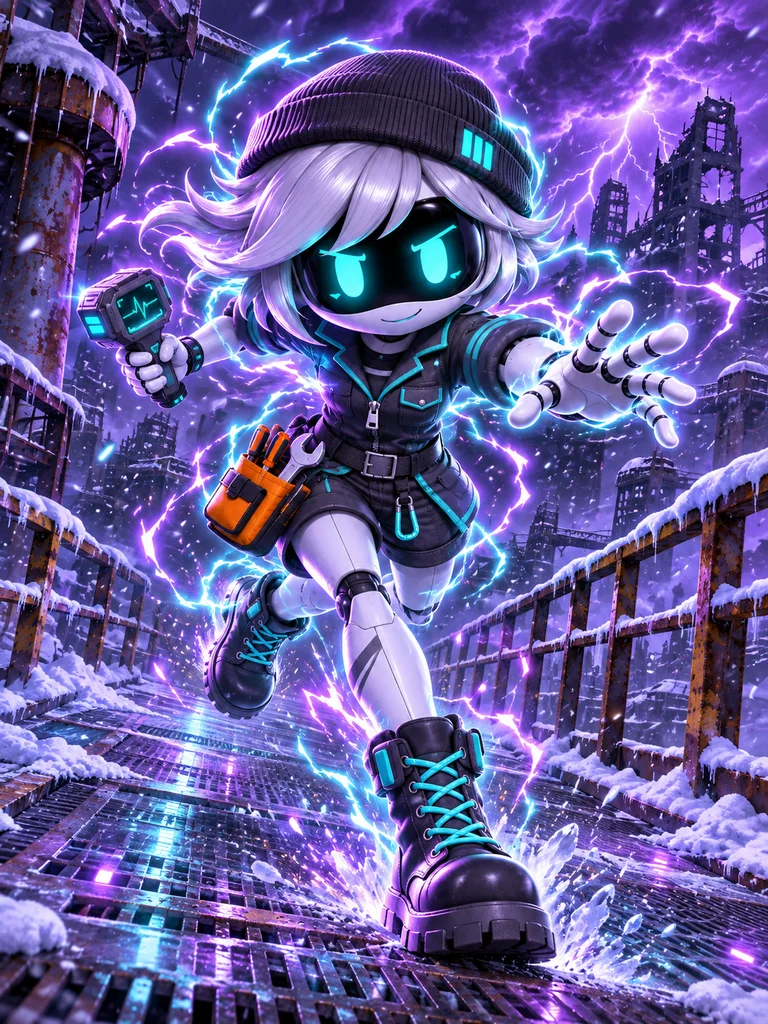
View action image prompt
Use this exact original robot character as the identity reference. Create one dramatic full-body action illustration of THE SAME Relay robot: cyan LED face screen, silver bob, charcoal beanie, white articulated limbs, charcoal repair jacket with teal trim, orange tool pouch, same dark cyan-laced boots. Forward dash pose on an elevated metal walkway in a snow-covered abandoned industrial city at night, ruined towers, violet storm clouds, distant lightning and drifting snow. Bright cyan-violet electrical arcs surround the character, glowing eyes, sparks and floating energy particles, powerful fan-made electric overdrive style. Keep face, hair, outfit and pouch clearly recognizable. No wings, no tail, no new armor, no transformation to another character. Single character, no text no watermark, polished cinematic cel-shaded 3D animation art, vertical3:4 composition, all feet and head visible.
Try this variation request
Keep Relay’s cyan screen eyes, silver hair, black beanie, charcoal jacket with teal trim, orange pouch and boots. Change the pose into a powerful electrical attack, with cyan-violet arcs around the character. Place Relay on an elevated walkway in a snowy ruined city, with the whole body visible.
Build your character’s next chapter in AI Anime Generator
Design, develop and animate your OC on one platform. Our Builder turns character choices into a brief, Composition helps you explore new views and action poses, and Animate this image carries a result into the video editor. The creative decisions stay yours; the controls help you move from one stage to the next.
- Start in Builder or Prompt. Start with Builder’s visible drone type and appearance choices. Expand Customize appearance for name, eye color, hair, headwear, outfit and accessory; Expression, body and backstory contains the role. Or switch to Prompt to write your own description. Review the visible generation cost before choosing Generate.
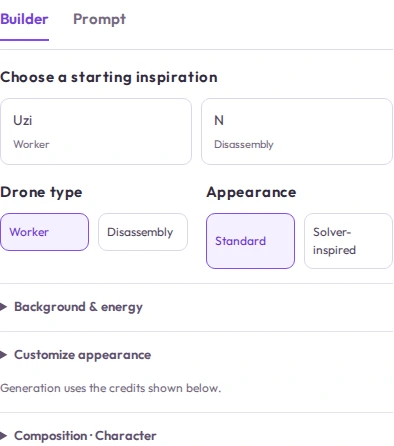
AI Anime Generator’s compact Builder keeps the main choices in view; expand a section when you want to refine the details. View full size - Choose the composition. Expand Composition and select Three views for a design sheet or Action pose for a scene. Expand Background & energy to choose the setting and effect. For the electrical example, use Forward dash, Electric overdrive and the snowy-city scene. When making the second branch, upload the saved original as reference and change Composition directly.
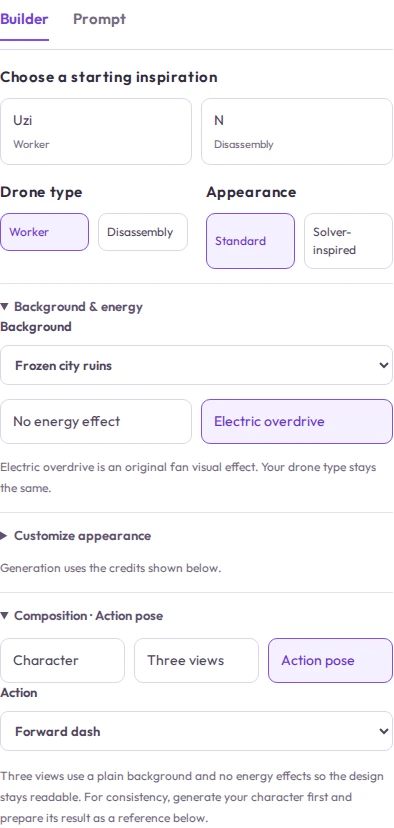
Our Composition and Background & energy controls organize the pose, scene and effect into a request you can review. View full size - Continue from a generated result. In Keep creating with your OC, Prepare three views and Prepare an action pose become available after a successful image result. They use the current result as reference. They are disabled when there is no result; the Relay example preview alone does not enable them. Review the prepared request, then choose Generate.
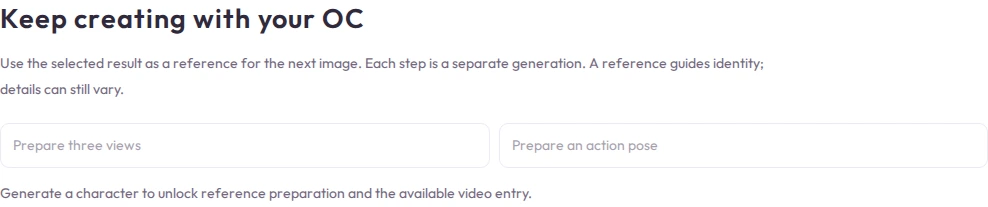
Our Prepare actions reuse your selected result as a reference for the next request. They unlock after a successful generation; this platform screenshot shows the initial disabled state. View full size - Check the video quote. Animate this image takes the result into the video workflow. Review the reference, model, duration, resolution and credit quote. Choose Generate only when those settings match your plan.
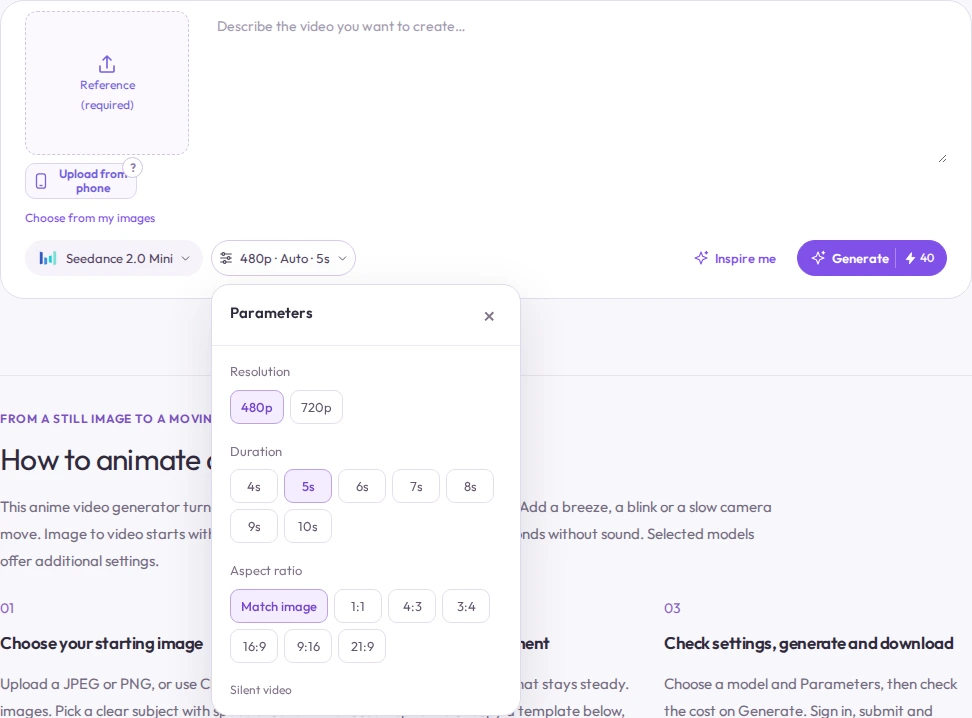
AI Anime Generator’s video editor shows the Mini model, five-second duration, 480p setting and 40-credit quote together, so you can check the request before generating. View full size
4. Give the action a beginning, a strike and a landing
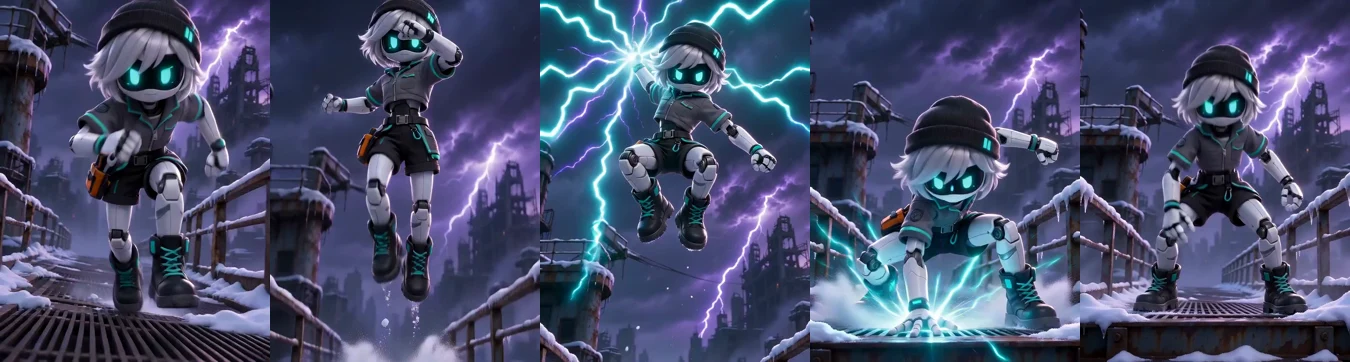
This is where a character illustration becomes a moment you can watch and share. Relay crouches, jumps, releases an electrical strike and lands on the walkway. The action image supplied the visual reference, and AI Anime Generator’s video workflow turned the motion prompt below into the finished five-second clip.
This clip used Seedance 2 Mini, with a five-second, 480p selection and no audio. It cost 40 site credits for this example. Check the current generation button for your settings and price before generating.
The prompt used for this video
The same original robot crouches briefly, jumps high into the air with both feet off the platform, swings one arm downward in a powerful energy strike releasing cyan-violet electrical arcs, then lands firmly on the metal walkway with a burst of sparks. The camera pulls back enough to keep the whole body, hands, feet and landing visible. Maintain the same face-screen, cyan eyes, silver hair, black beanie, charcoal jacket with teal trim, orange pouch and boots. Keep the snowy ruined city. One continuous dynamic action shot, no extra limbs, no cuts.
- Create the character. In the Murder Drones OC maker, enter your character description in Builder, review it and choose Generate.
- Prepare a variation. Save the original image first. While the original result is still selected, Prepare three views or Prepare an action pose fills the reference and prompt. Review both, then choose Generate. If you have already generated the three-view sheet, upload the saved original as your reference and select Action pose directly in Composition. Choose Forward dash, Electric overdrive and the scene if needed, check the reference, then Generate. Do not click Prepare again for this route: it would replace your uploaded reference with the current result.
- Move the action into video. On the action image, choose Animate this image. Review the video settings and current credit quote, then choose Generate.
The images and video are separate generation steps.
5. Keep your character recognizable, from image to video
New angles. A new setting. The same recognizable Relay. The cyan eyes, silver hair, black beanie and charcoal-and-teal palette connect the original design, the three-view sheet, the electric action image and the finished clip. That continuity gives you a character you can keep developing—a cast member for your own stories.
| Detail | What we observed |
|---|---|
| Face and hair | The cyan screen eyes, silver hair and black beanie remain recognizable. |
| Main outfit | The charcoal-and-teal clothing and orange pouch carry the character’s palette into motion. |
| Scanner | The handheld scanner is unstable or disappears during the action. |
| Small construction details | Pockets, buckles and straps change between images and video frames. |
| Pose and proportions | The attack adds movement, while body proportions shift as the pose changes. |
Make your original image the starting point for each new direction. In AI Anime Generator, reuse it as a reference and name your character’s signature features—eyes, hair, outfit and colors—so each request builds on the same design. Want a particular prop to stay in the scene? Include it in the motion prompt and review it at the key moments. Our reference workflow gives you a practical way to develop one recognizable OC across different views, action scenes and video.
OC image-to-video questions
Do I need a three-view sheet before making an OC video?
No. In this example, the three-view sheet helped inspect the design, while the action image supplied the video reference. Both images were derived separately from the original character image.
Can I keep my OC consistent across images and video?
Yes. Use a reference image in AI Anime Generator to carry your OC’s defining features into new poses, scenes and video. Start from your original character image, name the details you love, and use our reference controls to keep building on that design. Relay’s cyan eyes, silver hair, black beanie and signature palette show that continuity in action.
What can I do with a three-view character sheet?
Use it to explore your OC’s front, side and back, develop an outfit, or share a visual brief with an artist. It gives your character a design reference you can return to as you create more images. For 3D animation, a separate model and rig are needed.
How much did this video cost?
This example used Seedance 2 Mini with a five-second, 480p selection and cost 40 site credits. Check the current generation button for the price of your own settings.
Your OC deserves a scene of their own
Start with a character you have been imagining. Shape their look in AI Anime Generator’s OC Maker, explore a new pose or setting with a reference image, then bring a favorite result into motion. Your first image can be the beginning of a much bigger story.
Create your own OC