We operate AI Anime Generator. This guide describes our current upload and generation workflow, checked October 23, 2026. The examples below are existing generated results, not a new character-consistency benchmark.
How to use an anime reference image
AI Anime Generator accepts one JPEG, PNG or WebP reference up to 10 MB and 25 megapixels. Choose a reference-capable model, then use a description to request changes. A reference guides appearance; it does not guarantee an identical face in every result.
- Open Photo to Anime and sign in. Choose Add photo and wait for the upload and image check to finish.
- Select a model and a look. Start with Anime, Chibi or Retro. Choose your frame and check the credit cost on the generation button.
- Add one request, if needed. Leave the description blank for a first style conversion, or describe one change such as a background or jacket.
- Generate, inspect and download. Compare the face, hairstyle and accessories with the original before making another variation.
Use a sharp, well-lit image with an unobstructed subject. For a portrait, keep the face large enough to see. Only upload images you have permission to use.
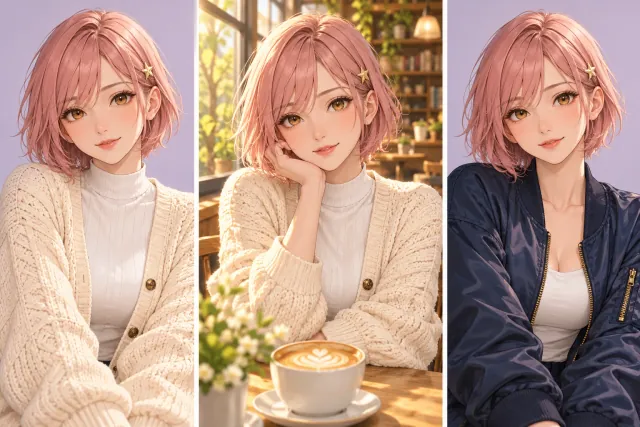
One character. A new scene. A fresh look.
Give a character a place in your next story. Try a warm cafe setting, explore a different outfit or build a new mood around a familiar face. Keep the details you love in your request, then describe the change you want.
One reference, different interpretations
These images come from our existing photo-to-anime examples. The source is an AI-created adult portrait; both outputs were generated with the original Nano Banana model. Notice how the same curly hair and glasses are interpreted differently as the style changes.
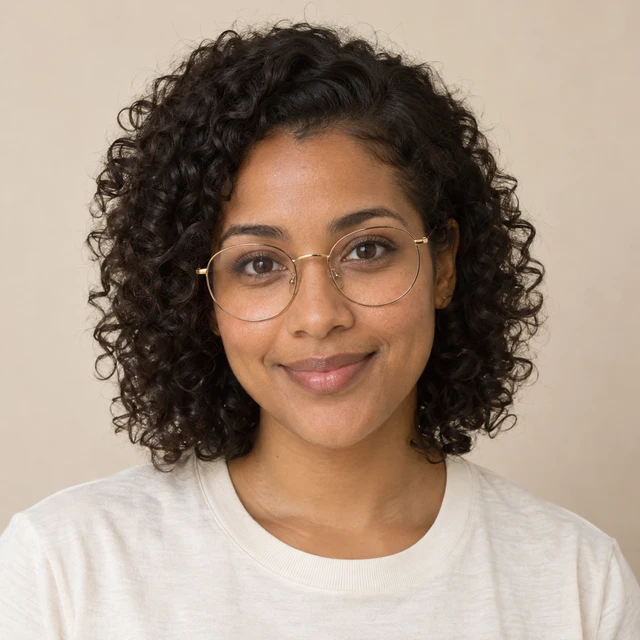
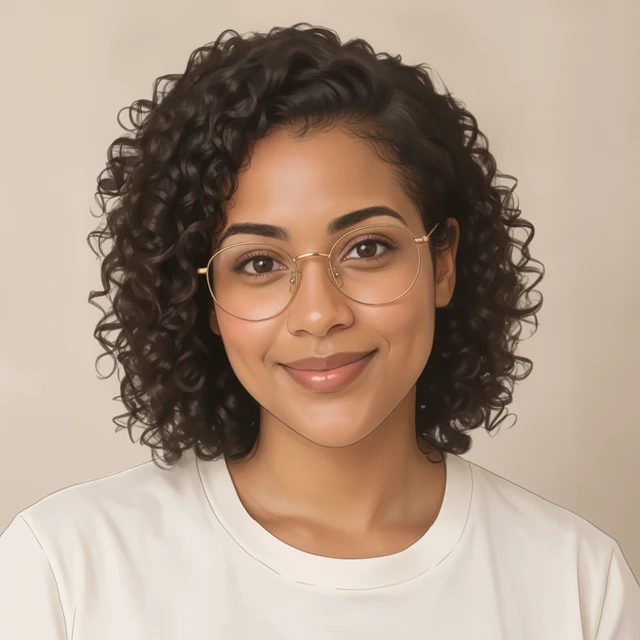
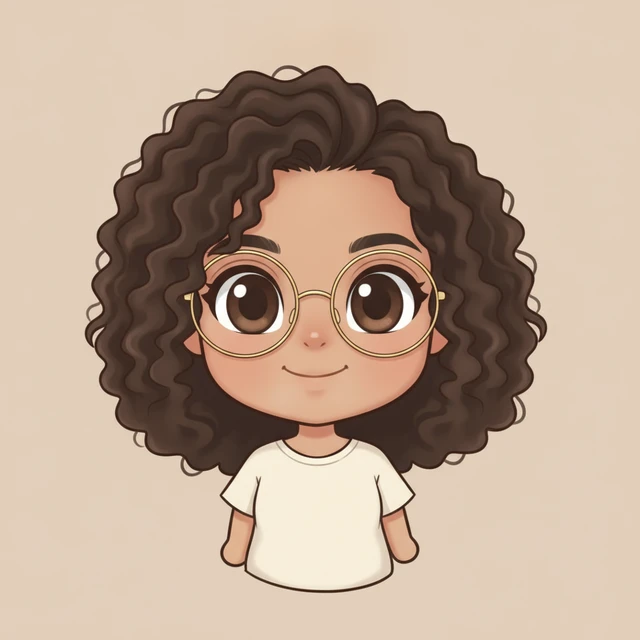
These examples show style conversion. They do not demonstrate that a character will stay identical across a whole story, or predict what another model will produce.
Choose a model that accepts a reference
Look for Text + reference in the model picker. The photo tool filters for models that support photo editing. The following models are configured for reference input in our studio.
| Model | Credits per image | Reference input |
|---|---|---|
| Nano Banana | 10 | One image |
| GPT Image 2 | 15 | One image |
| GPT Image 2.5 Flare | 15 | One image |
| GPT Image 2.5 Sunburst | 15 | One image |
| Nano Banana 2 Lite | 10 | One image |
Support here refers to our integration. A model offered elsewhere may have different features. For example, our Z-Image option is text-only. See credits and pricing before planning several variations.
Describe what stays and what changes
A useful request separates the features you want to preserve from the edit you want to make. Start with a small change so you can judge the effect.
Keep the portrait, change the setting
Keep the adult subject’s curly dark hair, round glasses and green jacket. Change only the background to a quiet cafe with soft window light. Keep the current framing.
Try another outfit
Keep the adult subject’s hairstyle, round glasses and facial features as close to the reference as possible. Replace the jacket with a cream cardigan. Keep the background simple.
These are suggested prompts to try, not the prompts used to produce the example images above. Words such as “keep” communicate your intent; they do not lock the corresponding pixels or guarantee identity preservation.
If the result drifts, simplify the next attempt
- The face looks different
- Use a clearer crop and remove competing requests. Try the same original reference and model with a shorter description.
- Glasses or clothing disappear
- Name the missing detail explicitly. Check that it is visible in the reference rather than hidden by hair, shadows or cropping.
- The pose does not change
- A large pose change is a harder request than a background edit. Start with a smaller change and inspect the anatomy and framing.
- The upload fails
- Check the file format, size and dimensions. Sign in and wait for image checks to complete. If you need help, include the request Reference shown in the error message when contacting support.
For a series, keep a copy of your original reference and your preferred prompt. Reusing each new output as the next reference can carry forward details you did not intend to change.
Try one clear reference
Choose a portrait, select a look and make one change. Compare the result before adding more instructions.
Open Photo to AnimeReference image questions
Which image files can I upload?
Upload one JPEG, PNG or WebP image, up to 10 MB and 25 megapixels. Sign in before uploading. A clear portrait with one visible subject is a useful first reference.
Can I keep exactly the same character in every image?
A reference guides the result, but does not lock a character identity. Facial features, accessories and clothing can change. Reuse the original reference, describe the features to keep and check each result.
Can I upload several character references at once?
The current image workflow accepts one reference at a time. It does not provide separate reference slots for multiple characters or dedicated character-versus-style reference controls.
Does every model support reference images?
No. Choose a model marked Text + reference. The photo-to-anime tool lists reference-capable models; the generation button shows the selected cost before you submit.
Do I need a description?
On the photo-to-anime tool, a description is optional. Select Anime, Chibi or Retro, then add a description when you want a specific change or want to emphasize a detail.